> ## Documentation Index
> Fetch the complete documentation index at: https://docs.hyperleap.ai/llms.txt
> Use this file to discover all available pages before exploring further.
# Create Your First Tool
> Learn how to create and customize AI tools for your specific business needs
## Prerequisites
Before creating Tools, ensure you have:
* Access to [Studio](https://studio.hyperleapai.com)
* Credits in your account
Follow these steps to create and configure a Tool:
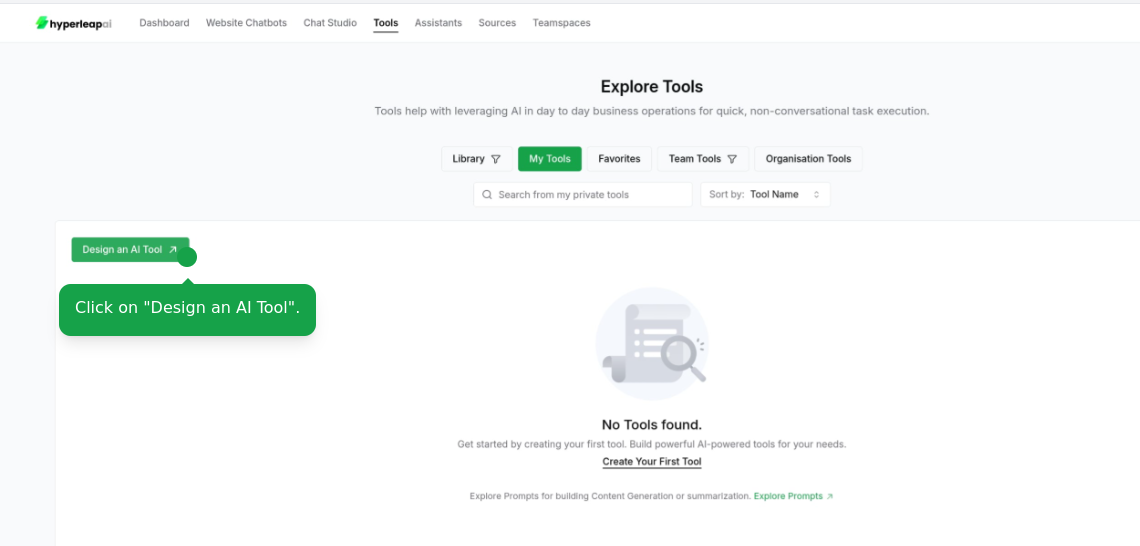
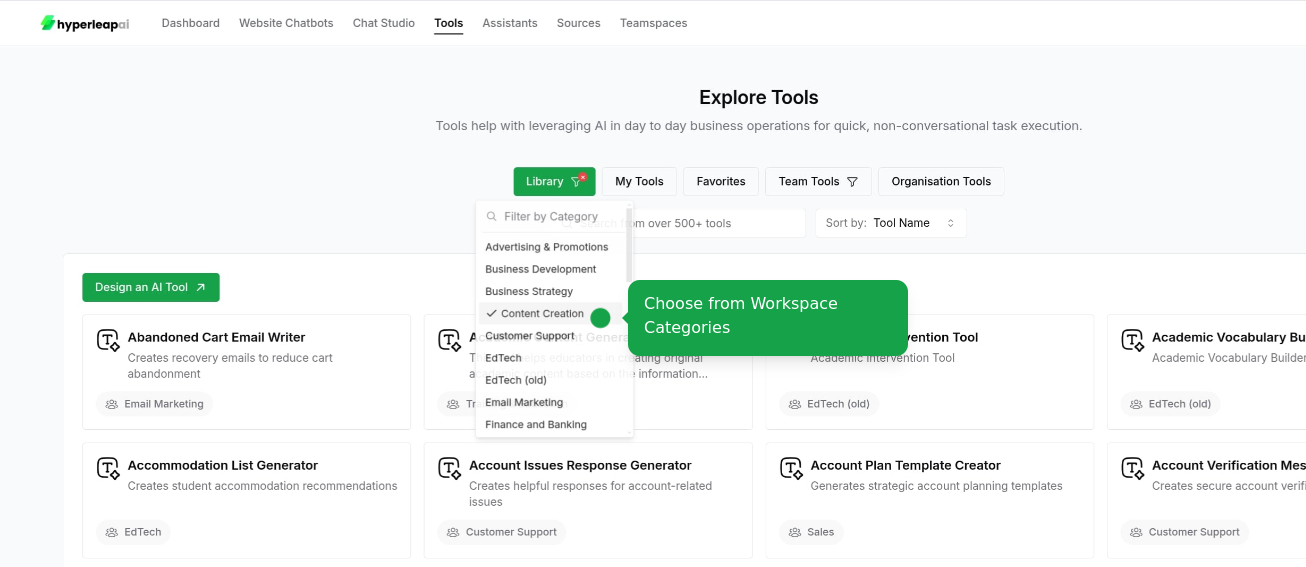
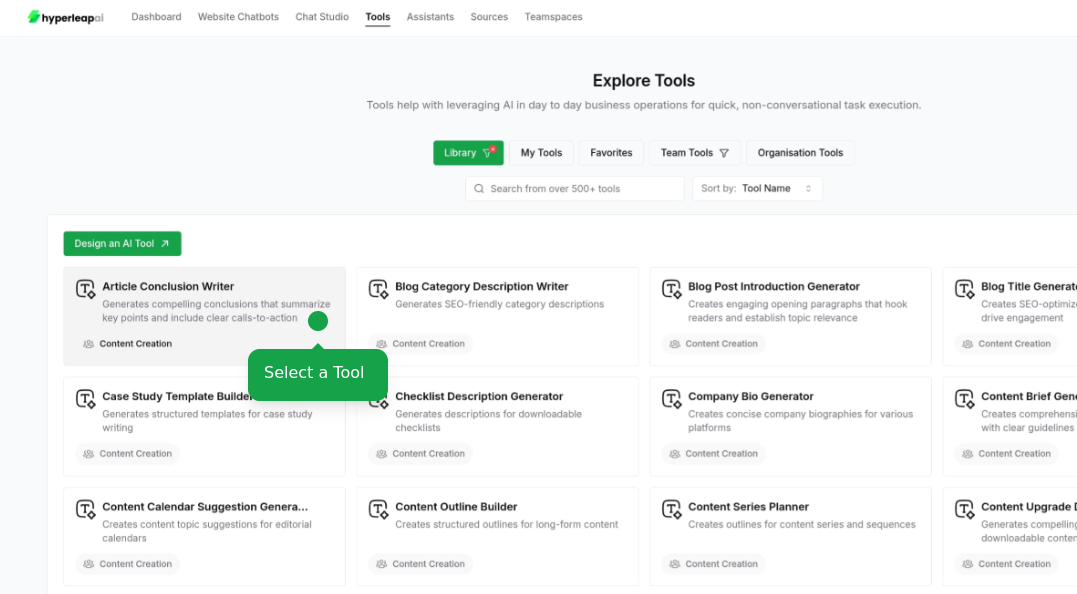
There are two ways to create a Tool
Start creating your Tool from Scratch
 Import from Tool Library and customize it
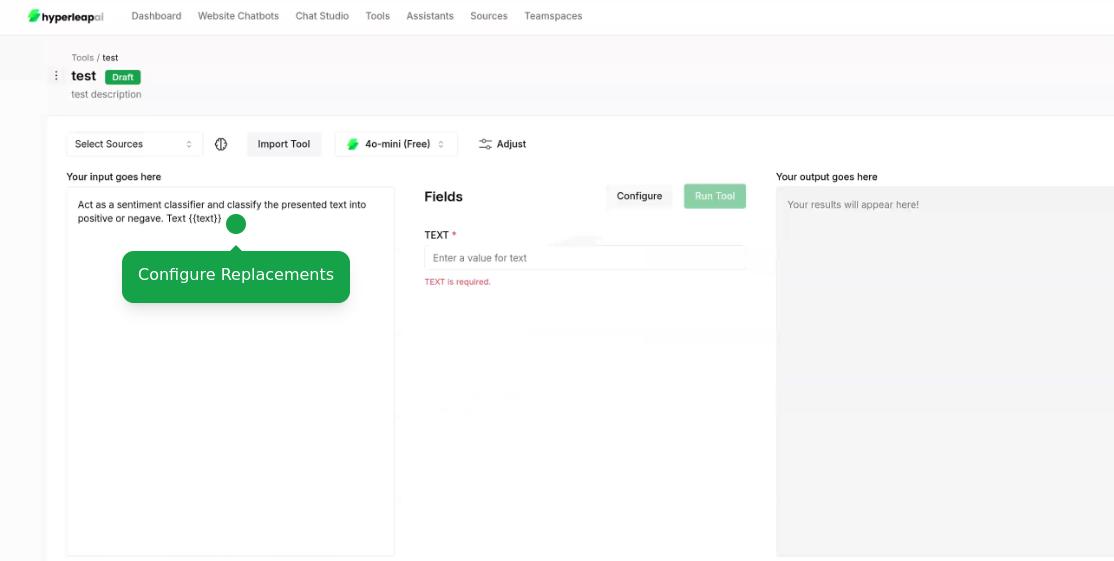
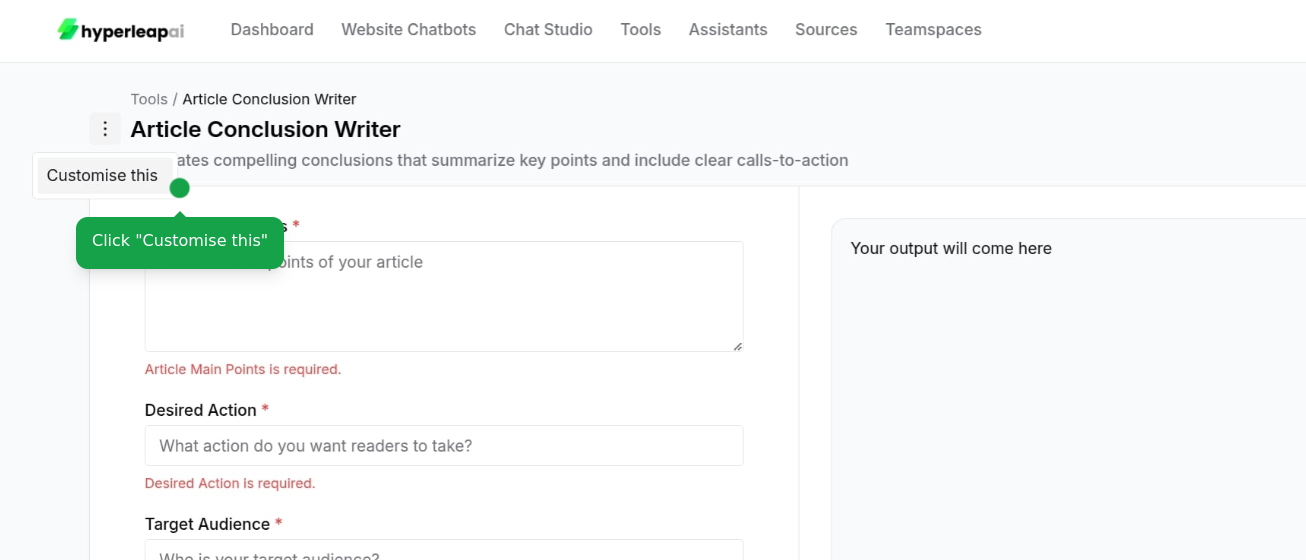 Define or update your Tool input. You can include dynamic variables (e.g. `{{variable_name}}`) that will be replaced with actual values when the Tool is used.
* Use `{{variable_name}}` syntax for replacements
Define or update your Tool input. You can include dynamic variables (e.g. `{{variable_name}}`) that will be replaced with actual values when the Tool is used.
* Use `{{variable_name}}` syntax for replacements
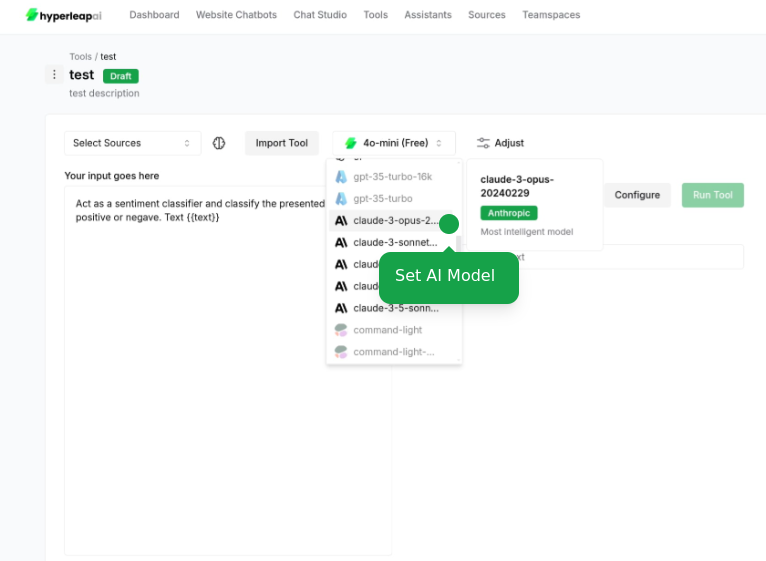
 Choose the AI model that best fits your use case:
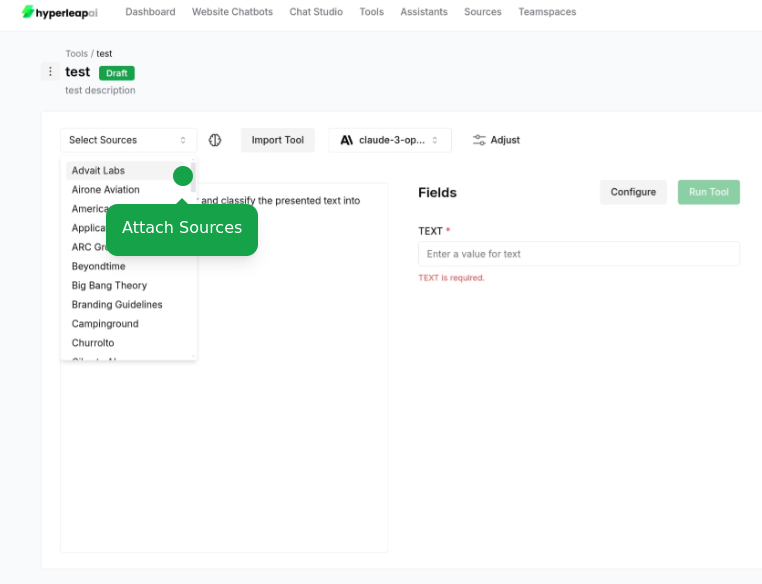
 Connect your data sources to improve the accuracy and relevance of AI responses. This allows the AI to utilize up-to-date information and context for better performance.
* Add documents, website URLs, or text content
To learn more about sources, check out the [Sources](/guides/sources) guide.
Connect your data sources to improve the accuracy and relevance of AI responses. This allows the AI to utilize up-to-date information and context for better performance.
* Add documents, website URLs, or text content
To learn more about sources, check out the [Sources](/guides/sources) guide.
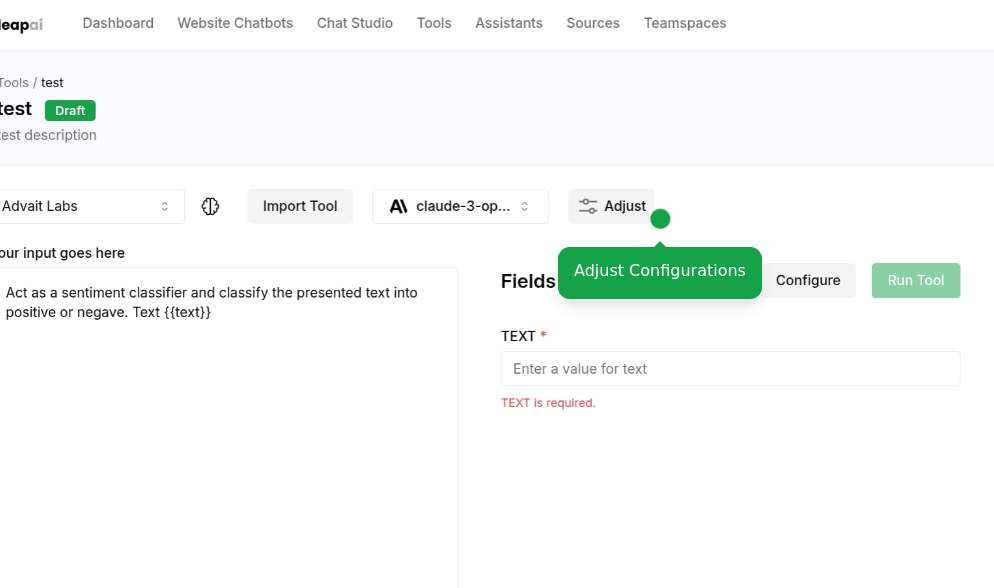
 Fine-tune your tool parameters:
 Access our tool template library at any point during configuration:
* View available tool templates by category
* Preview tool template behaviors
* Apply tool template settings to your current tool
Access our tool template library at any point during configuration:
* View available tool templates by category
* Preview tool template behaviors
* Apply tool template settings to your current tool
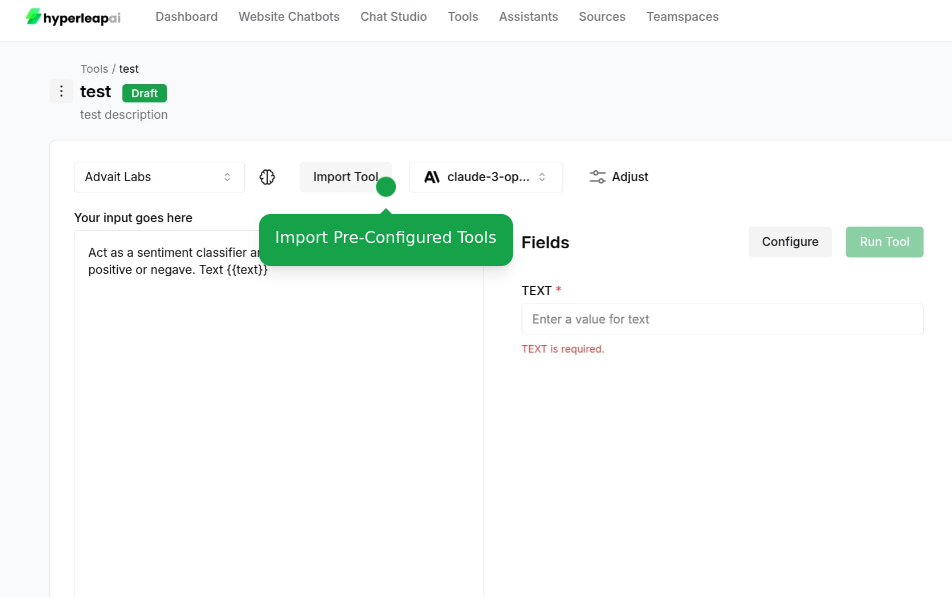
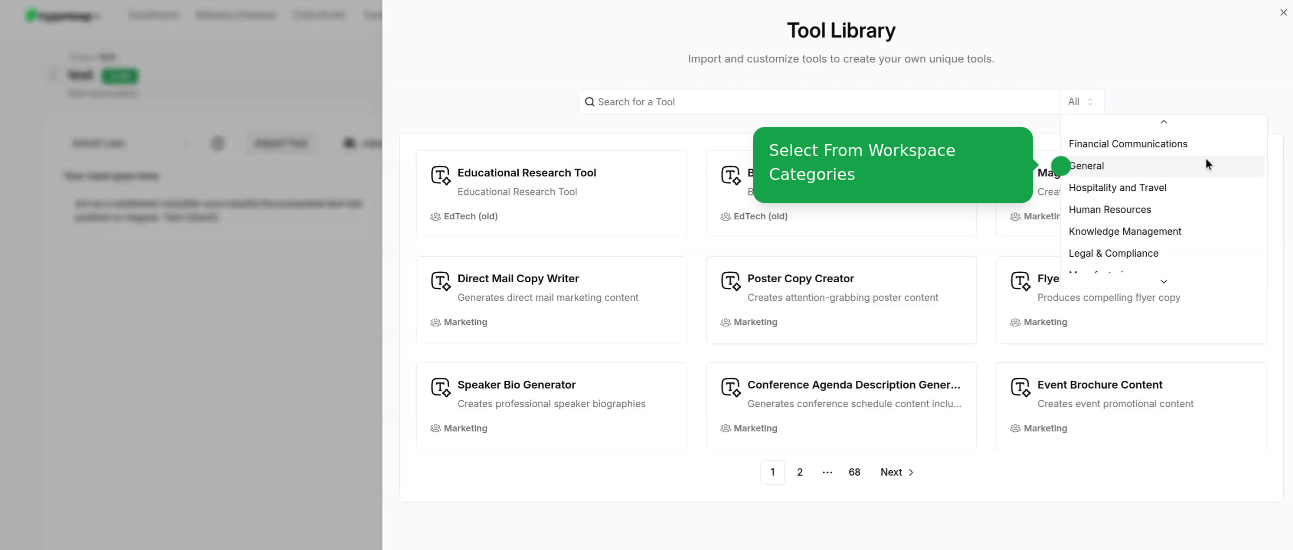
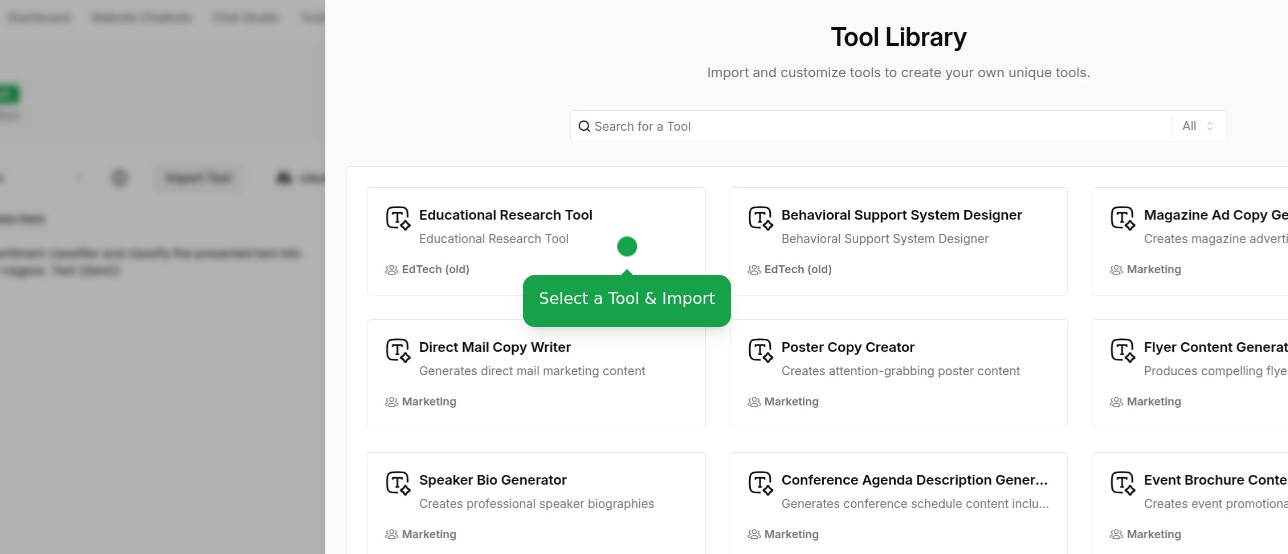 This is an alternative way to access templates if you didn't start with one. Your existing configurations will be overridden.
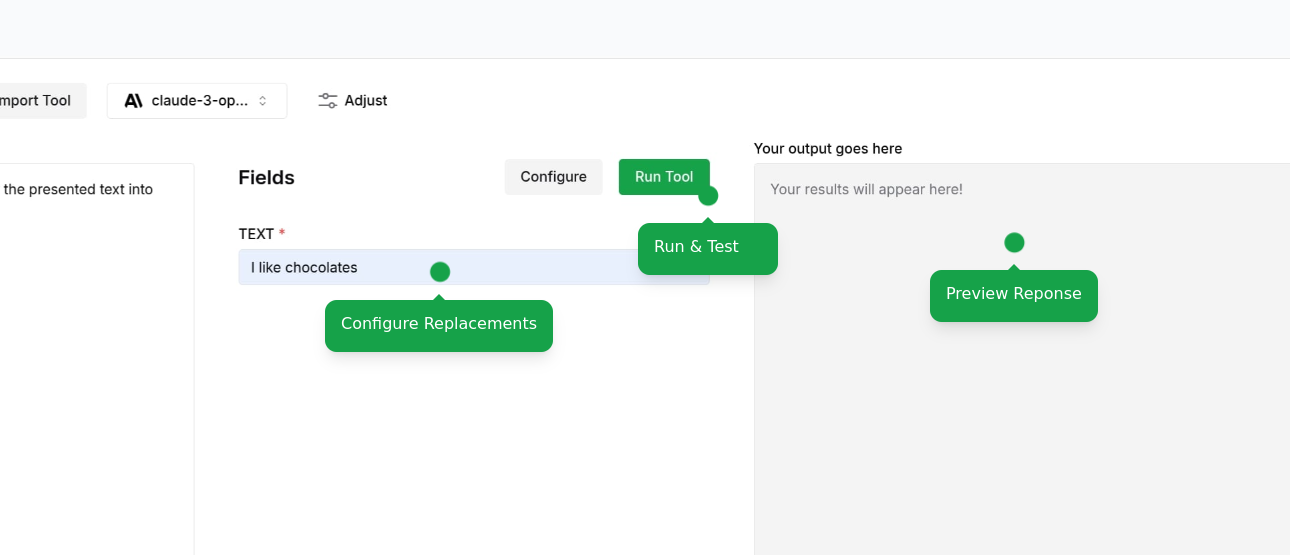
Run and Test your tool
* Enter dynamic values
* View generated responses
This is an alternative way to access templates if you didn't start with one. Your existing configurations will be overridden.
Run and Test your tool
* Enter dynamic values
* View generated responses
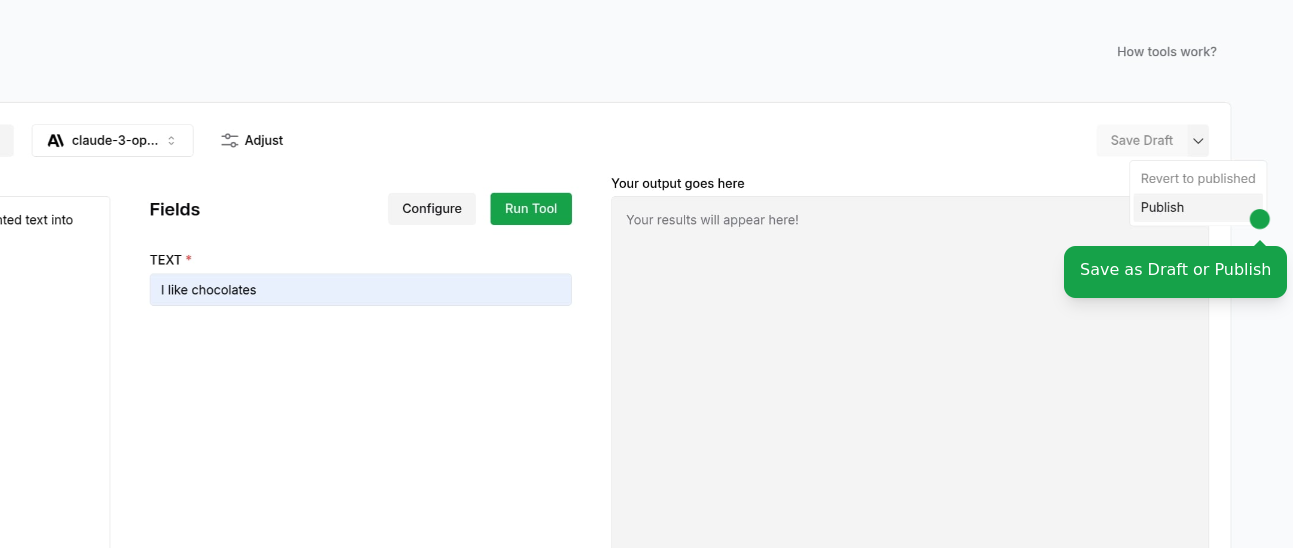
 Finalize your tool configuration:
* Save as draft to continue editing
* Publish to make it available to your team or organization
Finalize your tool configuration:
* Save as draft to continue editing
* Publish to make it available to your team or organization
 Users on the Free plan can create up to 10 tools. Upgrade your plan to create more tools and access additional features.
## What's Next?
Explore our collection of 500+ pre-built tools for various business operations
Learn to integrate prompts into your products for consistent AI interactions via REST APIs. Improve user experiences with customized AI responses.
Users on the Free plan can create up to 10 tools. Upgrade your plan to create more tools and access additional features.
## What's Next?
Explore our collection of 500+ pre-built tools for various business operations
Learn to integrate prompts into your products for consistent AI interactions via REST APIs. Improve user experiences with customized AI responses.