> ## Documentation Index
> Fetch the complete documentation index at: https://docs.hyperleap.ai/llms.txt
> Use this file to discover all available pages before exploring further.
# Sources
Sources in Hyperleap AI allow you to add business documents, websites, and text content to create contextually aware AI responses. Our advanced retrieval engine (RAG) automatically processes and indexes your content, ensuring your AI delivers accurate, relevant responses grounded in your business context.
## How Sources Work
Understand how Sources work in Hyperleap AI to power your AI interactions:
Upload your documents, add URLs, or input text. Our system automatically processes and indexes your content for optimal retrieval.
Advanced RAG (Retrieval Augmented Generation) technology analyzes and organizes your content for contextual understanding.
During AI interactions, relevant information is automatically retrieved and incorporated into responses.
Sources work seamlessly across Prompts and Personas, maintaining consistency in all AI interactions.
## Supported Content Types
* PDF files
* Word documents
* Text files
* Spreadsheets
Maximum file size: 1MB per document for free tier. Higher limits available in paid plans - see [pricing](https://hyperleap.ai/pricing) for details.
* Website URLs
* Web pages
* Online documentation
* Custom text input
* Code snippets
* Business rules
* Product information
## Creating Sources
Navigate to the Sources section in your API-Console and click on the "Create Source" button.
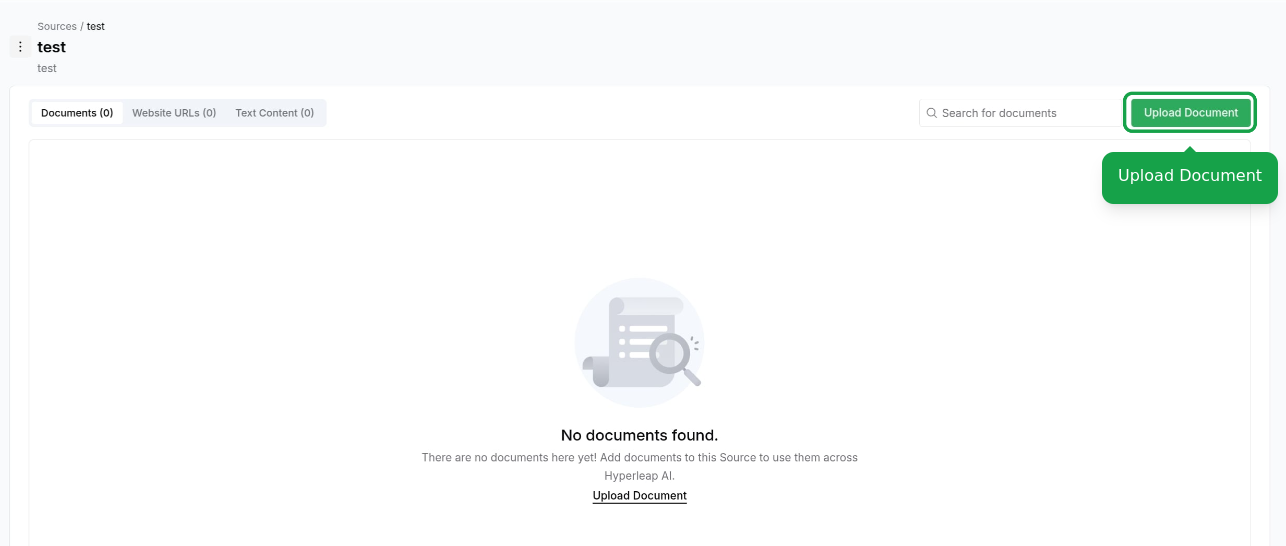
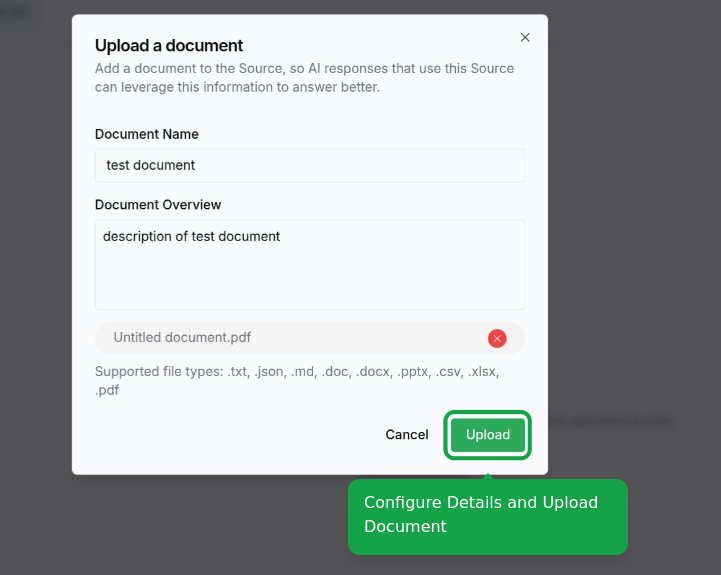
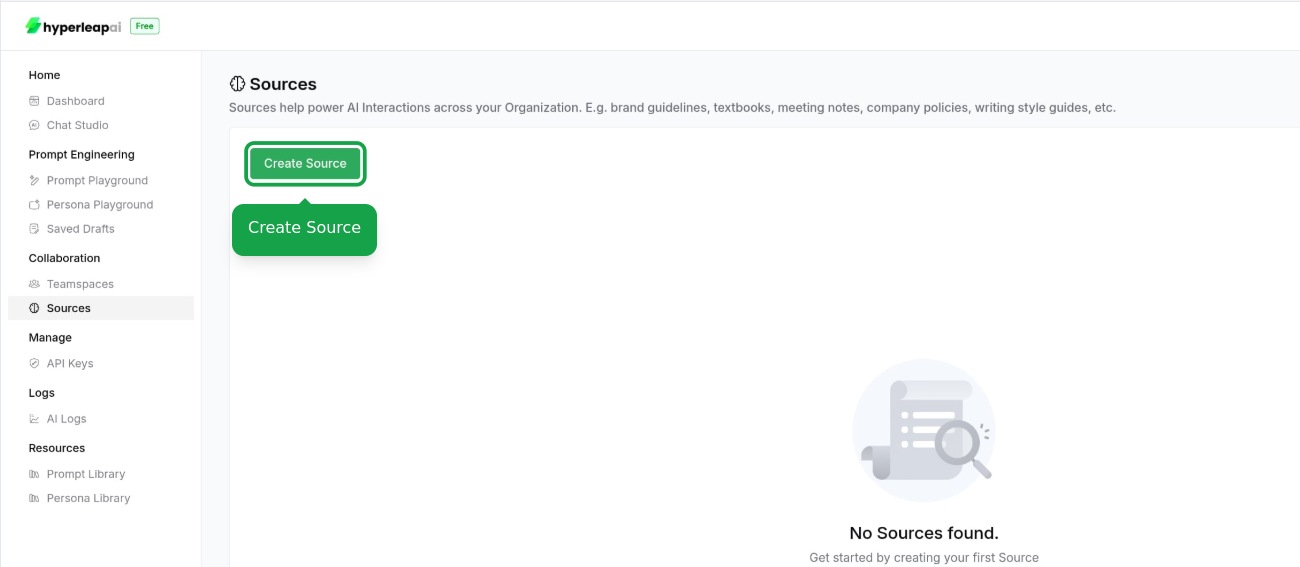 Choose your content addition method:
Drag and drop files or use the file picker
Choose your content addition method:
Drag and drop files or use the file picker
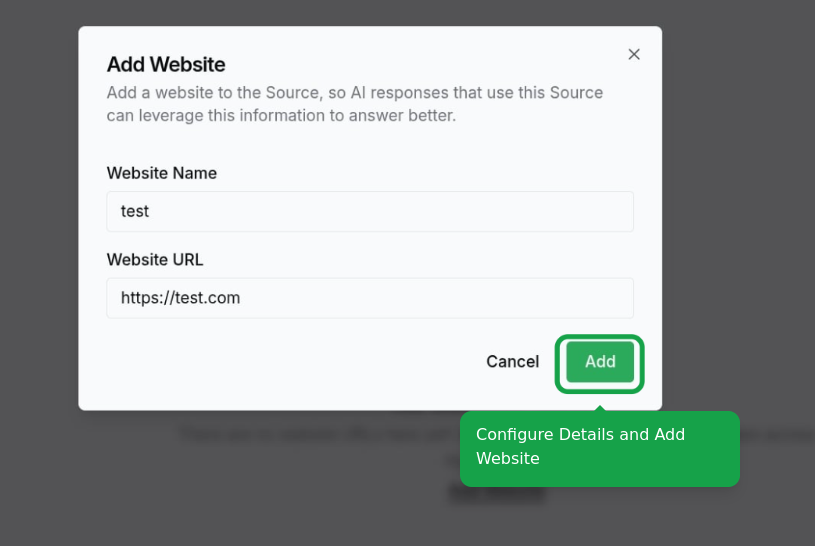
 Enter website URLs to index web content

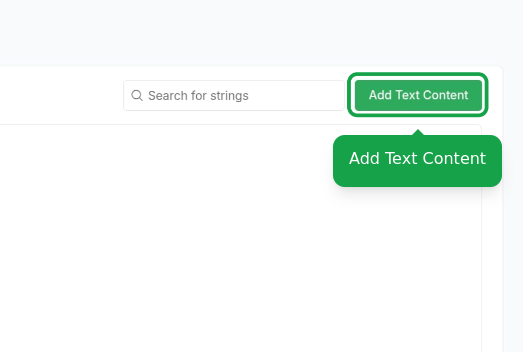
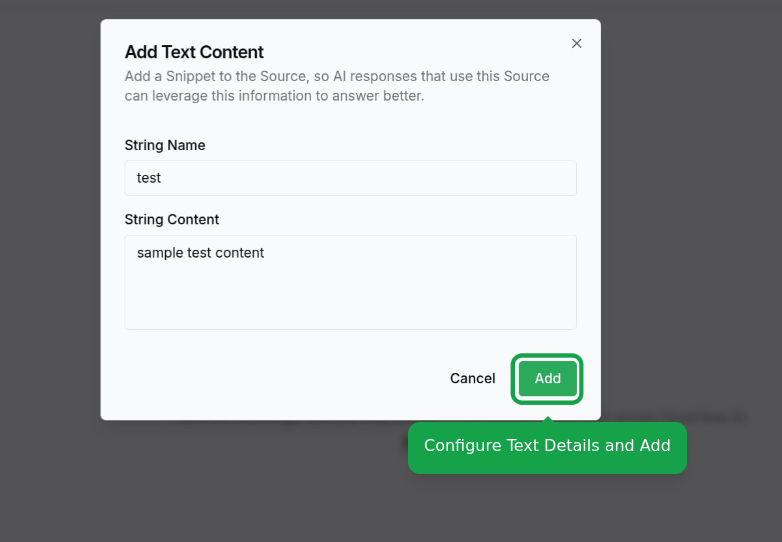
 Type or paste text content directly
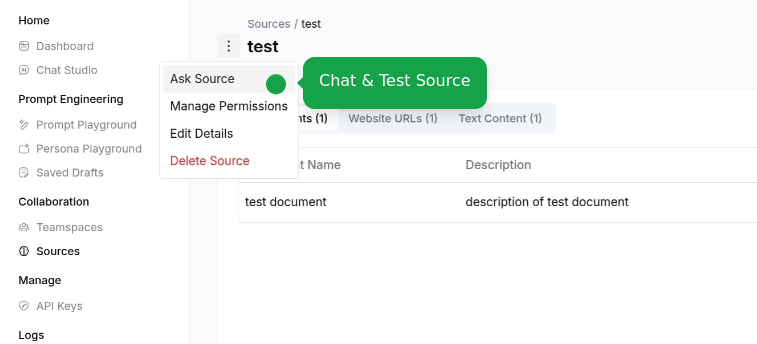
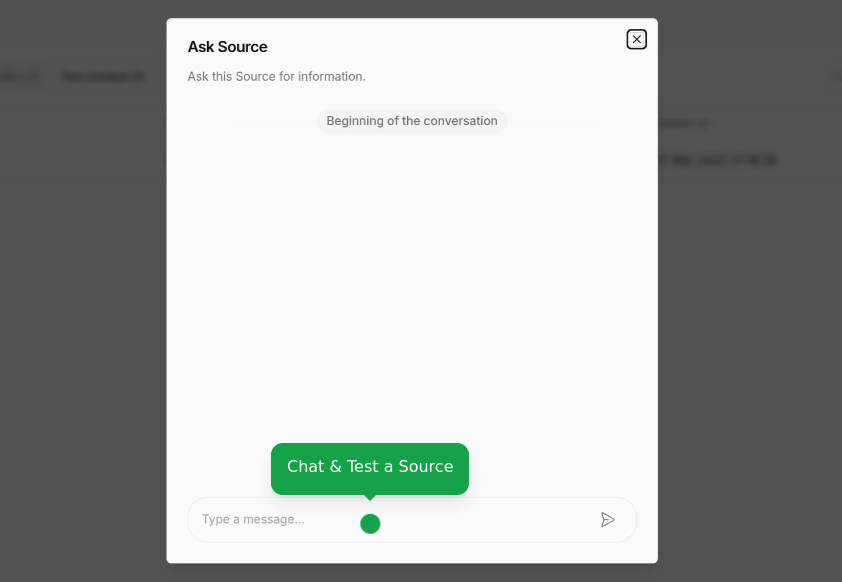
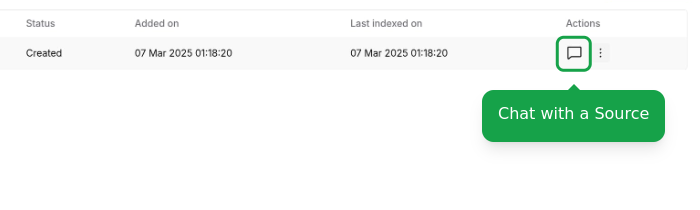
 Chat with your source to verify content understanding and relevance:
Test how your AI understands and uses the source content
Chat with your source to verify content understanding and relevance:
Test how your AI understands and uses the source content
 Test specific source types individually:
* Documents
* Website URLs
* Text content
Test specific source types individually:
* Documents
* Website URLs
* Text content
 Free plan users can create one source. [Upgrade your plan](https://hyperleap.ai/pricing) to create multiple sources and unlock advanced features.
Your source is now ready to power AI features across your workspace:
Add your Source to
Prompts, Personas, Tools, Assistants.
All Workspace members can use Sources to
Build AI features, Create conversations, Generate responses
Sources are accessible to all team members within your Workspace, ensuring uniform AI responses based on your organization's information.
## Troubleshooting
**Issue**: Content not being processed correctly
**Solutions**:
* Verify file format compatibility
* Check file size limits
* Ensure clean, readable content
* Try breaking large files into smaller chunks
**Issue**: AI not using source content effectively
**Solutions**:
* Review content organization
* Try Re-Indexing the source
* Verify content relevance
* Test with specific queries
**Issue**: Sources not working with Prompts or Personas
**Solutions**:
* Review access permissions
* Test in playground first
## Next Steps
Learn how to use Sources in your Prompts
Add Sources to power your Personas
## Need Help?
* Check our [FAQ](/guides/faq)
* Contact [Support](mailto:support@hyperleap.ai)
Free plan users can create one source. [Upgrade your plan](https://hyperleap.ai/pricing) to create multiple sources and unlock advanced features.
Your source is now ready to power AI features across your workspace:
Add your Source to
Prompts, Personas, Tools, Assistants.
All Workspace members can use Sources to
Build AI features, Create conversations, Generate responses
Sources are accessible to all team members within your Workspace, ensuring uniform AI responses based on your organization's information.
## Troubleshooting
**Issue**: Content not being processed correctly
**Solutions**:
* Verify file format compatibility
* Check file size limits
* Ensure clean, readable content
* Try breaking large files into smaller chunks
**Issue**: AI not using source content effectively
**Solutions**:
* Review content organization
* Try Re-Indexing the source
* Verify content relevance
* Test with specific queries
**Issue**: Sources not working with Prompts or Personas
**Solutions**:
* Review access permissions
* Test in playground first
## Next Steps
Learn how to use Sources in your Prompts
Add Sources to power your Personas
## Need Help?
* Check our [FAQ](/guides/faq)
* Contact [Support](mailto:support@hyperleap.ai)