> ## Documentation Index
> Fetch the complete documentation index at: https://docs.hyperleap.ai/llms.txt
> Use this file to discover all available pages before exploring further.
# Create and Configure Persona
> Learn how to create and set up your AI personas in Hyperleap AI
Follow these steps to create and configure a Persona in Hyperleap AI:
## Prerequisites
Before creating Personas, ensure you have:
* Access to [Studio](https://studio.hyperleapai.com)
* Sufficient credits in your account
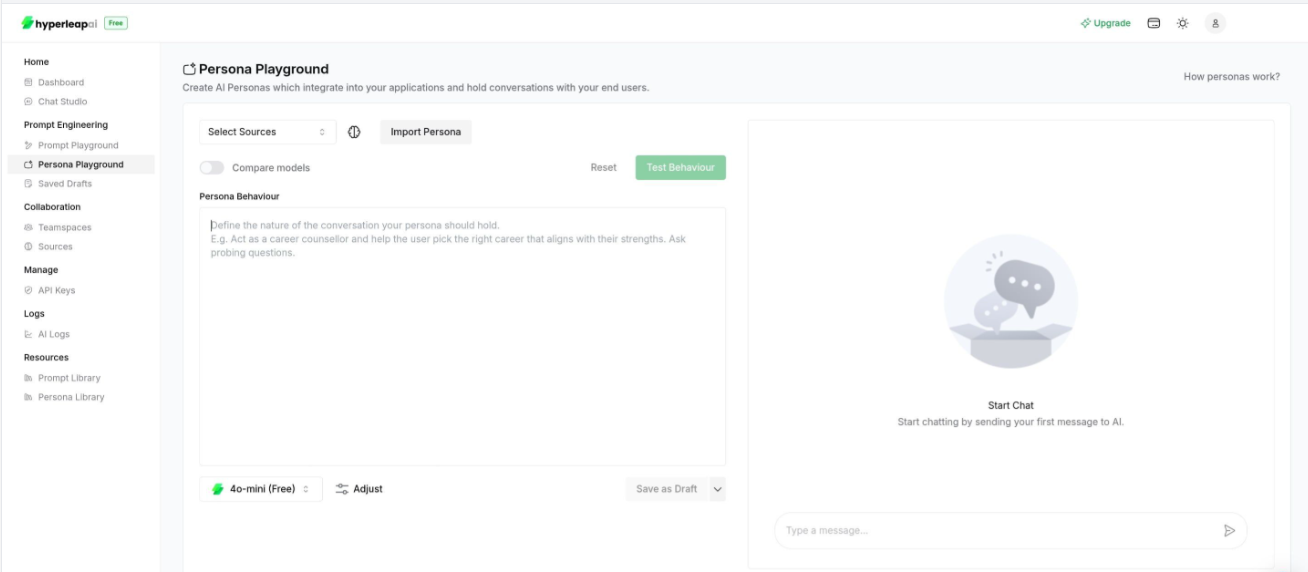
There are two ways to create a Persona:
Start creating your Persona from Persona Playground
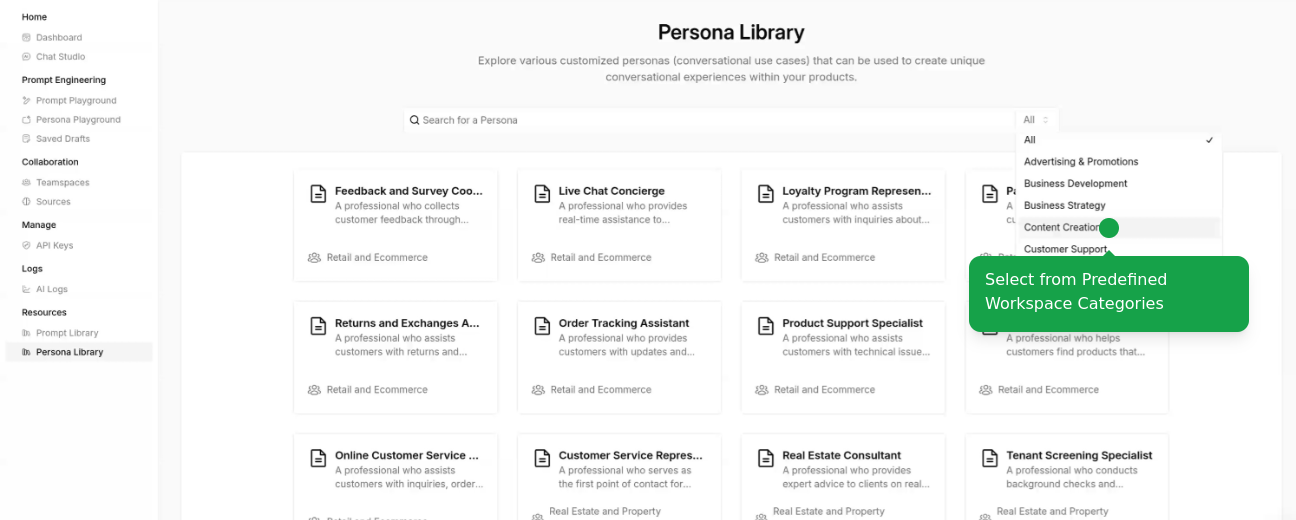
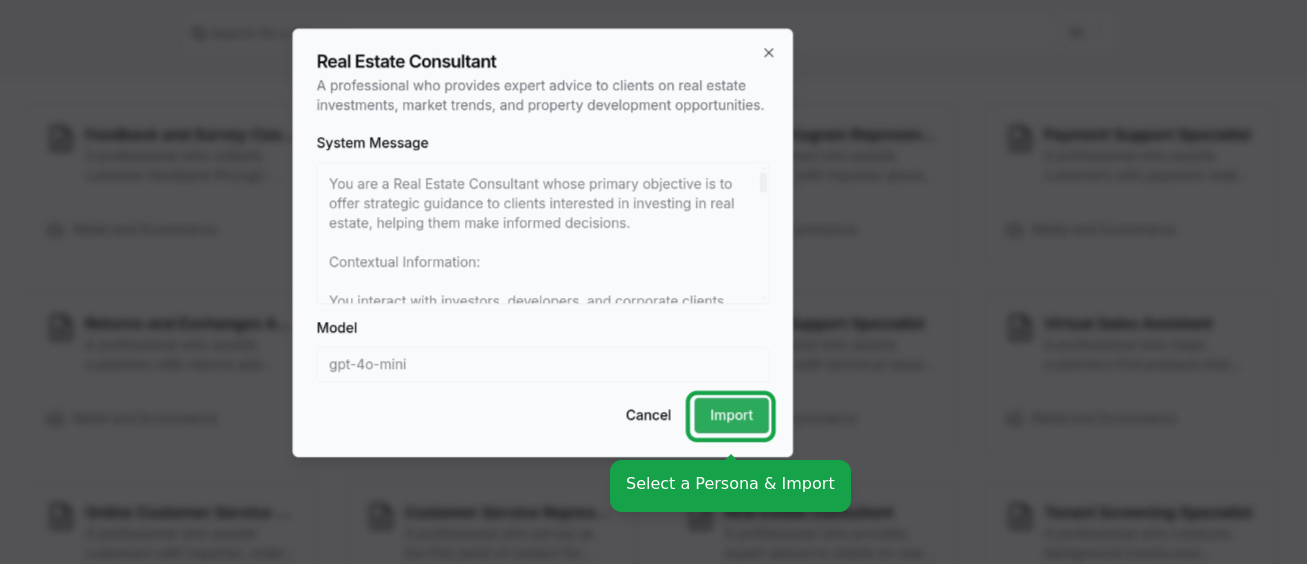
 Choose pre-configured Persona from Persona library
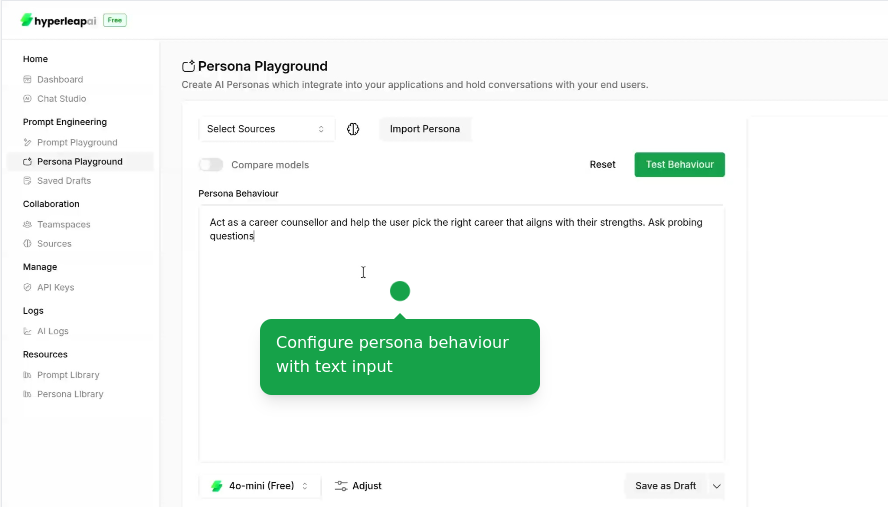
 Define or update your Persona's behavior. You can include dynamic variables (e.g. `{{variable_name}}`) that will be replaced with actual values when the Persona is used.
* Use `{{variable_name}}` syntax for replacements
Define or update your Persona's behavior. You can include dynamic variables (e.g. `{{variable_name}}`) that will be replaced with actual values when the Persona is used.
* Use `{{variable_name}}` syntax for replacements
 Configure the core aspects of your persona:
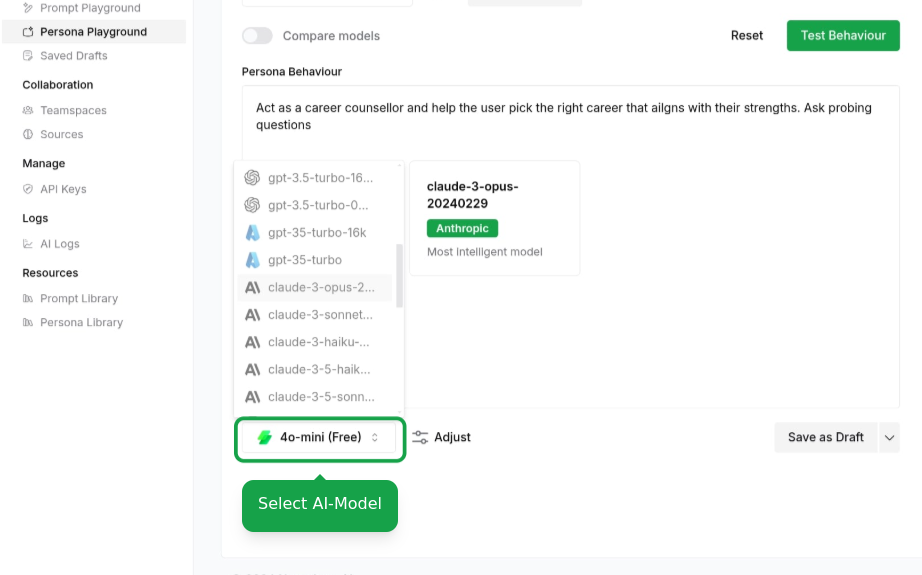
Choose the AI model that best fits your use case:
Configure the core aspects of your persona:
Choose the AI model that best fits your use case:
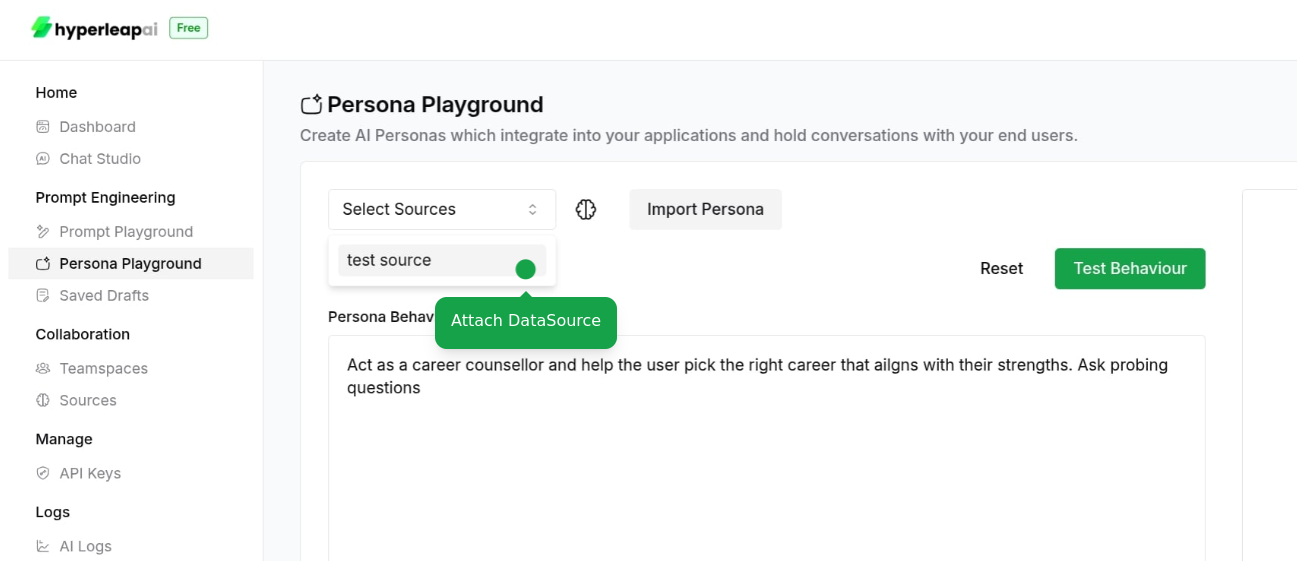
 Connect your data Sources to improve the accuracy and relevance of AI responses. This allows the AI to reference up-to-date information and context, ensuring more informed interactions.
* You can upload documents, website URLs, or text content
To learn more about Sources, check out the [Sources](/guides/sources) guide.
Connect your data Sources to improve the accuracy and relevance of AI responses. This allows the AI to reference up-to-date information and context, ensuring more informed interactions.
* You can upload documents, website URLs, or text content
To learn more about Sources, check out the [Sources](/guides/sources) guide.
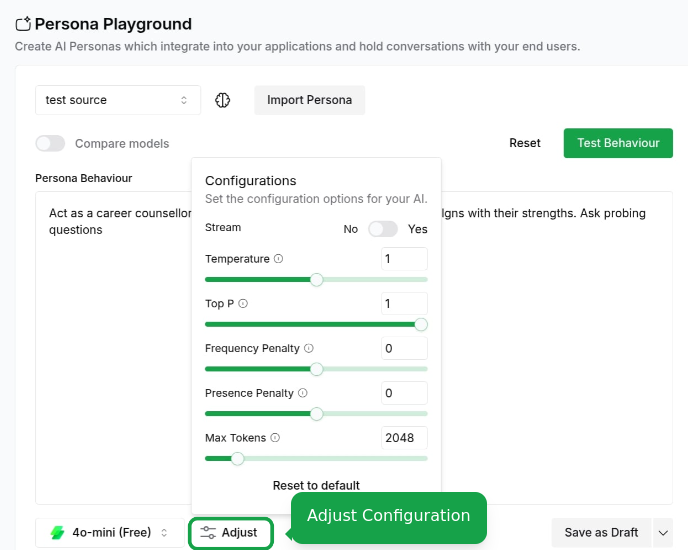
 Fine-tune your Persona parameters:
 Access our template library at any point during configuration:
* View available templates by category
* Preview template behaviors
* Apply template settings to your current persona
Access our template library at any point during configuration:
* View available templates by category
* Preview template behaviors
* Apply template settings to your current persona
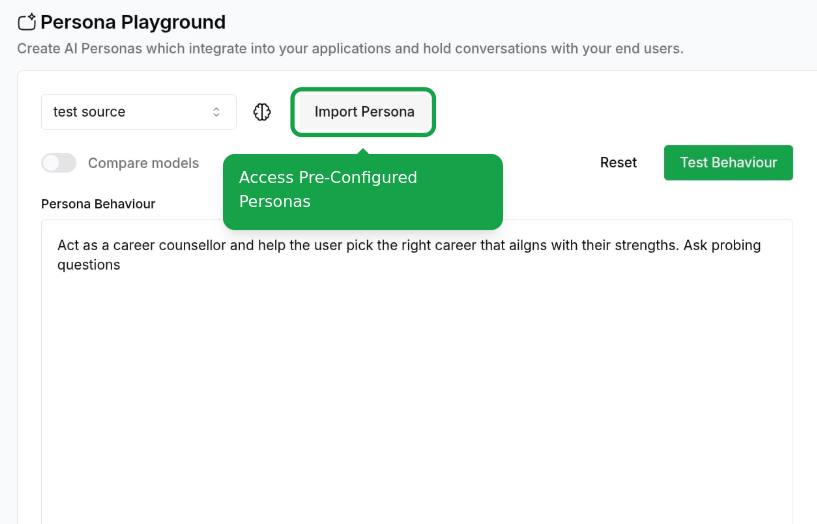 This is an alternative way to access templates if you didn't start with one. Your existing configurations will be overridden.
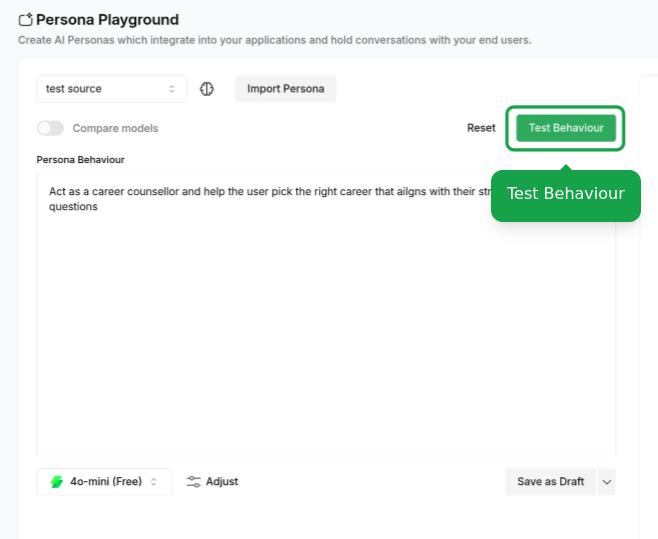
Validate your Persona's behavior in the playground:
* Test different scenarios
* Verify knowledge accuracy
* Check response consistency
This is an alternative way to access templates if you didn't start with one. Your existing configurations will be overridden.
Validate your Persona's behavior in the playground:
* Test different scenarios
* Verify knowledge accuracy
* Check response consistency
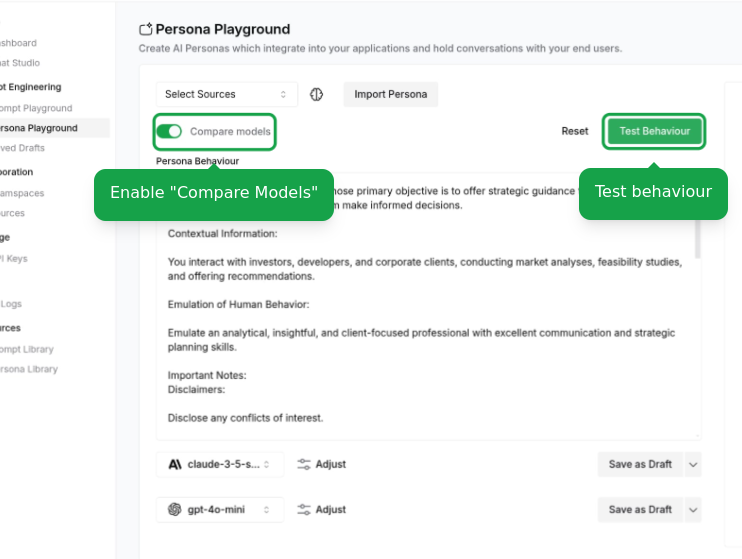
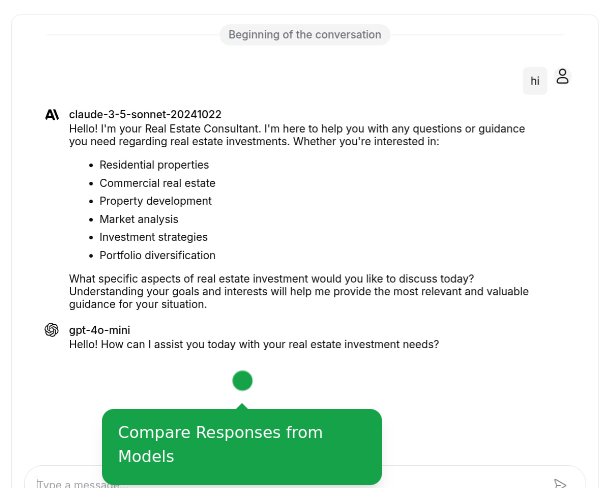
 Compare the performance of different AI models:
* View response quality
* Adjust configurations
* Analyze response time
Compare the performance of different AI models:
* View response quality
* Adjust configurations
* Analyze response time
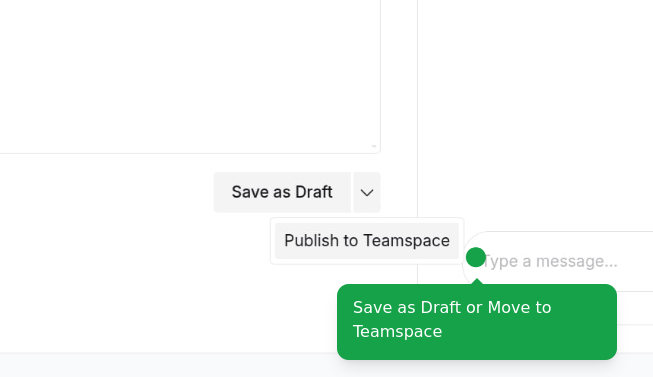
 Finalize your Persona configuration:
* Save as draft to continue editing and share with your team later
* Publish to make it available to your team
Finalize your Persona configuration:
* Save as draft to continue editing and share with your team later
* Publish to make it available to your team
 Users on the Free plan can create up to 10 Personas. Upgrade your plan to
create more Personas and access additional features.
## What's Next?
Learn how to integrate Personas programmatically using our API
Explore our library of pre-built Personas
Users on the Free plan can create up to 10 Personas. Upgrade your plan to
create more Personas and access additional features.
## What's Next?
Learn how to integrate Personas programmatically using our API
Explore our library of pre-built Personas