> ## Documentation Index
> Fetch the complete documentation index at: https://docs.hyperleap.ai/llms.txt
> Use this file to discover all available pages before exploring further.

# Create Your First Chatbot

> A Comprehensive Guide to Creating and Configuring AI Chatbots

## Prerequisites

Before creating Chatbots, ensure you have:

* Access to [Studio](https://studio.hyperleapai.com)
* An active Chatbot subscription
* Website access for deployment

<Note>
  You have to [whitelist](https://studio.hyperleapai.com/manage-organization)
  the domain of your website in the organization settings to use the chatbot.
</Note>

Follow these steps to create and configure a Chatbot:

<Steps>
  <Step title="Get Started">
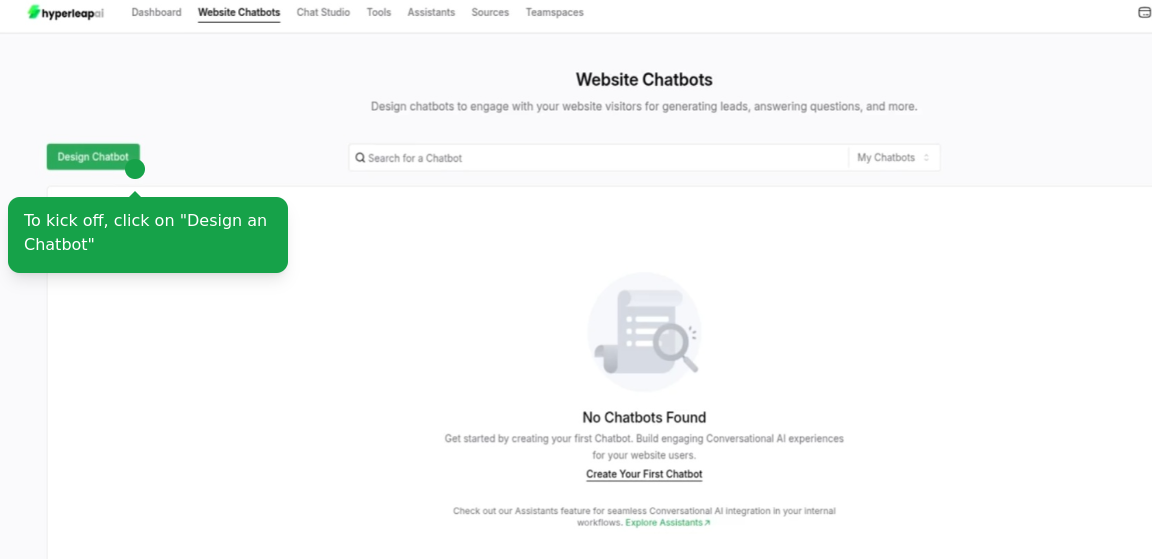
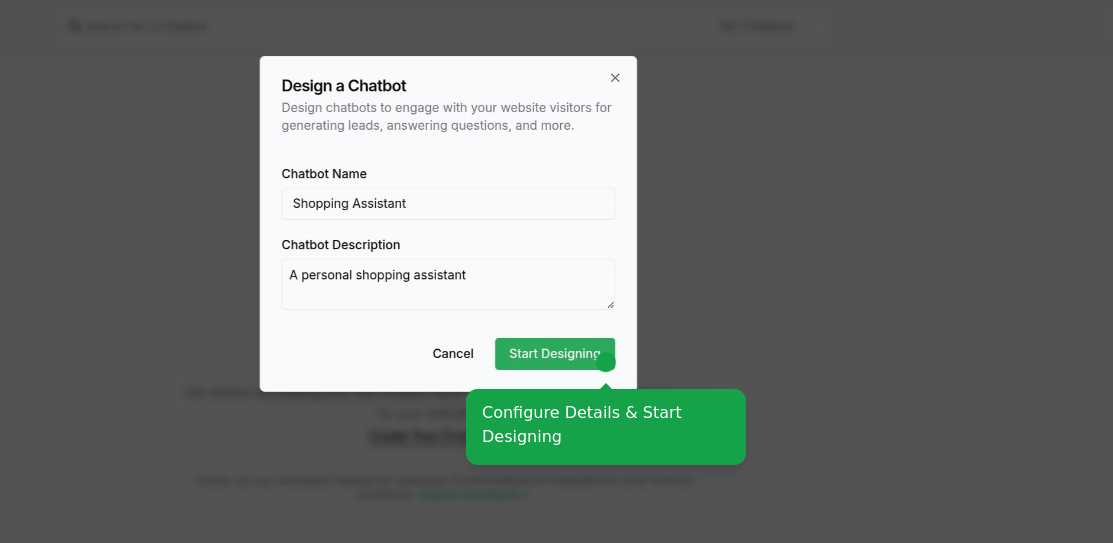
    Navigate to the website-chatbots page in Studio and click "Create New Chatbot".

    <Frame>
      <img src="https://mintcdn.com/hyperleap/QxFG4NXBbALtF1BY/images/chatbots/create/create-chatbot.png?fit=max&auto=format&n=QxFG4NXBbALtF1BY&q=85&s=4c98c1ddc906276995706c4000cadf2b" alt="Creating a new chatbot" width="800" data-path="images/chatbots/create/create-chatbot.png" />
    </Frame>

    <Frame>
      <img src="https://mintcdn.com/hyperleap/QxFG4NXBbALtF1BY/images/chatbots/create/configure-details.png?fit=max&auto=format&n=QxFG4NXBbALtF1BY&q=85&s=eef0c2b6ed4c8b336825b31dc2896011" alt="Creating a new chatbot" width="800" data-path="images/chatbots/create/configure-details.png" />
    </Frame>
  </Step>

  <Step title="Configure Content">
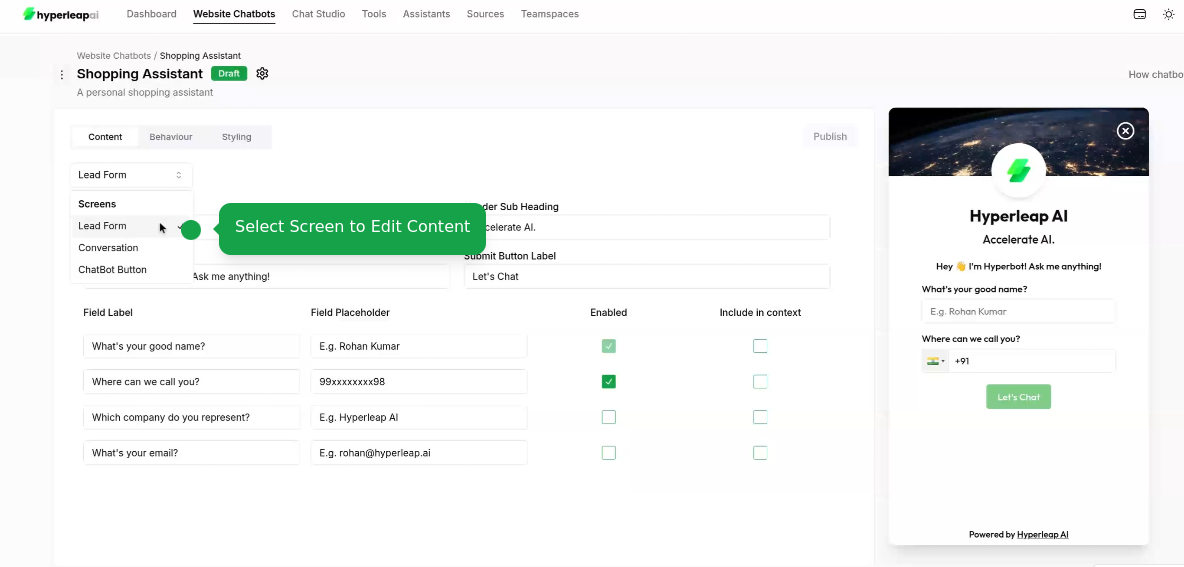
    Configure your chatbot's content across different screens:

    Select a Screen and configure its content

    <Frame>
      <img src="https://mintcdn.com/hyperleap/QxFG4NXBbALtF1BY/images/chatbots/create/configure-content.png?fit=max&auto=format&n=QxFG4NXBbALtF1BY&q=85&s=c21c1c96dca270d6b781137067b61412" alt="Configure chatbot content" width="800" data-path="images/chatbots/create/configure-content.png" />
    </Frame>
  </Step>

  <Step title="Configure Behavior">
    Set up your chatbot's AI behavior and responses:

    <Tabs>
      <Tab title="Import Pre-built Behavior">
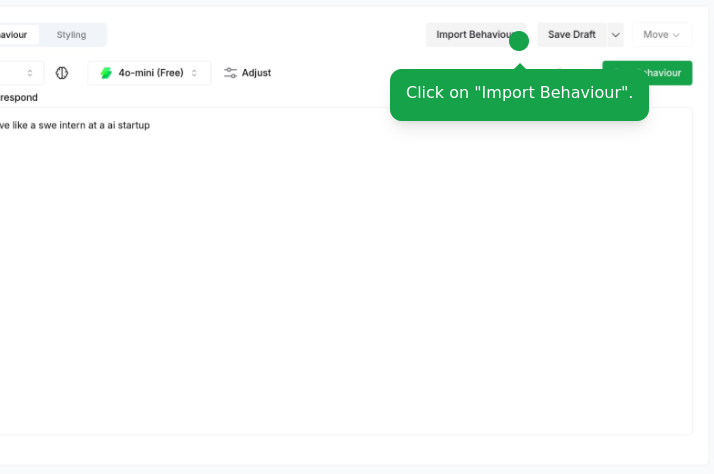
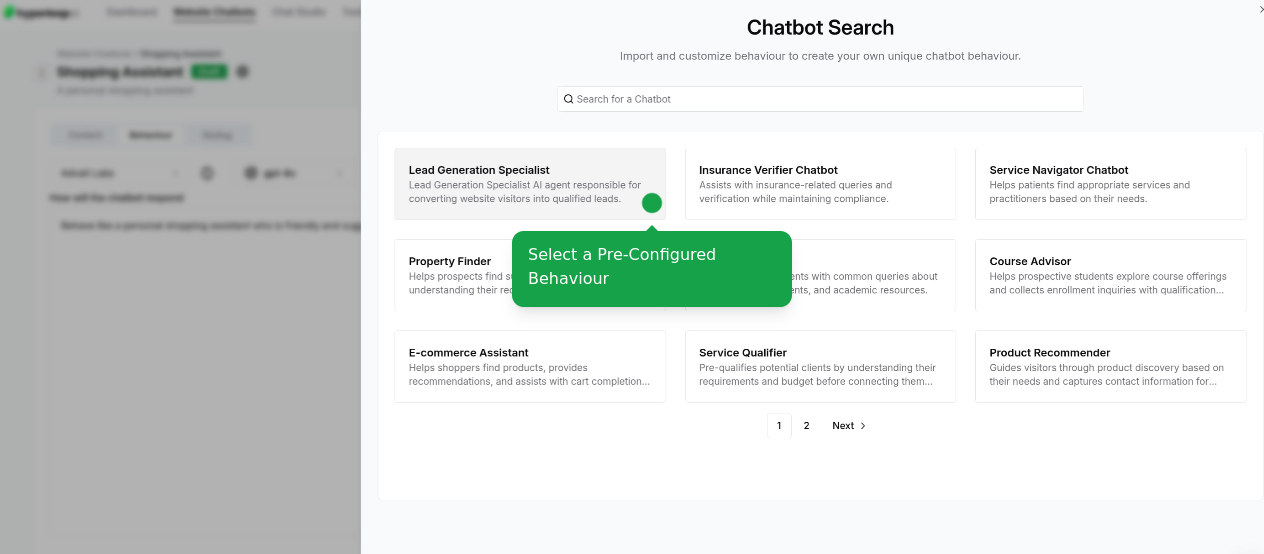
        Quick-start with tested behavior templates that you can customize:

        <AccordionGroup>
          <Accordion title="Import Behavior Templates">
            <Frame>
              <img src="https://mintcdn.com/hyperleap/QxFG4NXBbALtF1BY/images/chatbots/create/import-behavior.png?fit=max&auto=format&n=QxFG4NXBbALtF1BY&q=85&s=0d764d5502766d5211574ffd4d110d4f" alt="Import behavior" width="800" data-path="images/chatbots/create/import-behavior.png" />
            </Frame>

            <Frame>
              <img src="https://mintcdn.com/hyperleap/QxFG4NXBbALtF1BY/images/chatbots/create/select-behavior.png?fit=max&auto=format&n=QxFG4NXBbALtF1BY&q=85&s=6bfd50125b042c8548c03fcea51b23e4" alt="Select behavior" width="800" data-path="images/chatbots/create/select-behavior.png" />
            </Frame>

            After importing, you can customize all configuration options below:
          </Accordion>

          <Accordion title="Set AI Model">
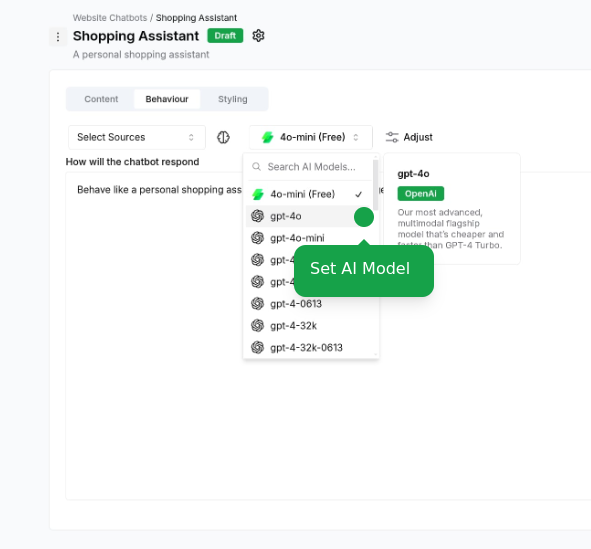
            Choose the AI model that best fits your use case:

            <Frame>
              <img src="https://mintcdn.com/hyperleap/QxFG4NXBbALtF1BY/images/chatbots/create/set-ai-model.png?fit=max&auto=format&n=QxFG4NXBbALtF1BY&q=85&s=00119e6ad8eeb5c2d07e41efbfd08a15" alt="Setting AI model" width="800" data-path="images/chatbots/create/set-ai-model.png" />
            </Frame>
          </Accordion>

          <Accordion title="Attach Sources">
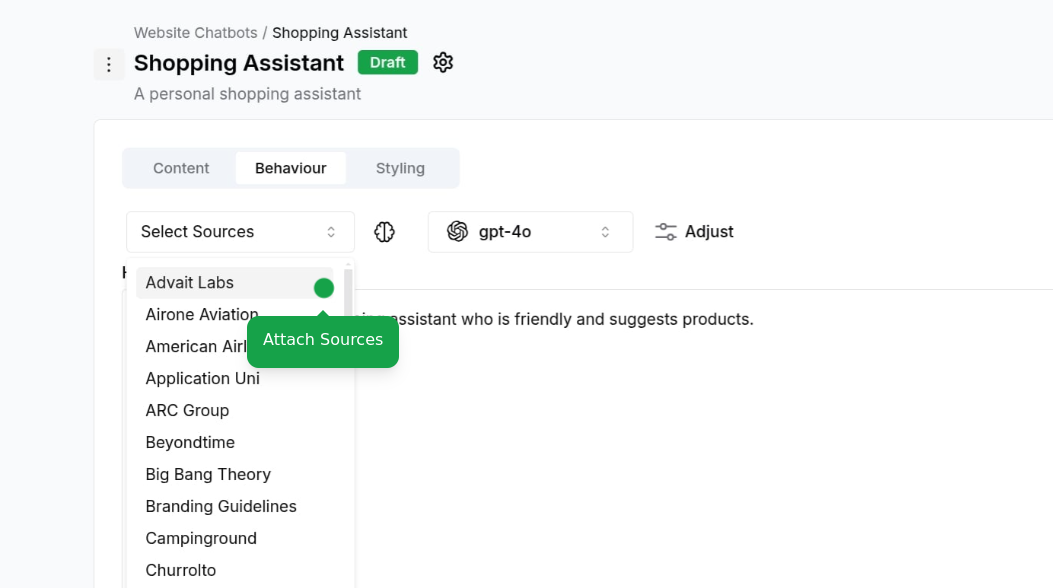
            Connect your knowledge sources:

            * Upload documents, website URLs, or text content

            <Frame>
              <img src="https://mintcdn.com/hyperleap/QxFG4NXBbALtF1BY/images/chatbots/create/attach-sources.png?fit=max&auto=format&n=QxFG4NXBbALtF1BY&q=85&s=45ae1b76936e91fe362e3a9eb9f30583" alt="Setting AI model" width="800" data-path="images/chatbots/create/attach-sources.png" />
            </Frame>

            <Note>
              To learn more about sources, check out the [Sources](/guides/sources) guide.
            </Note>
          </Accordion>

          <Accordion title="Adjust Configurations">
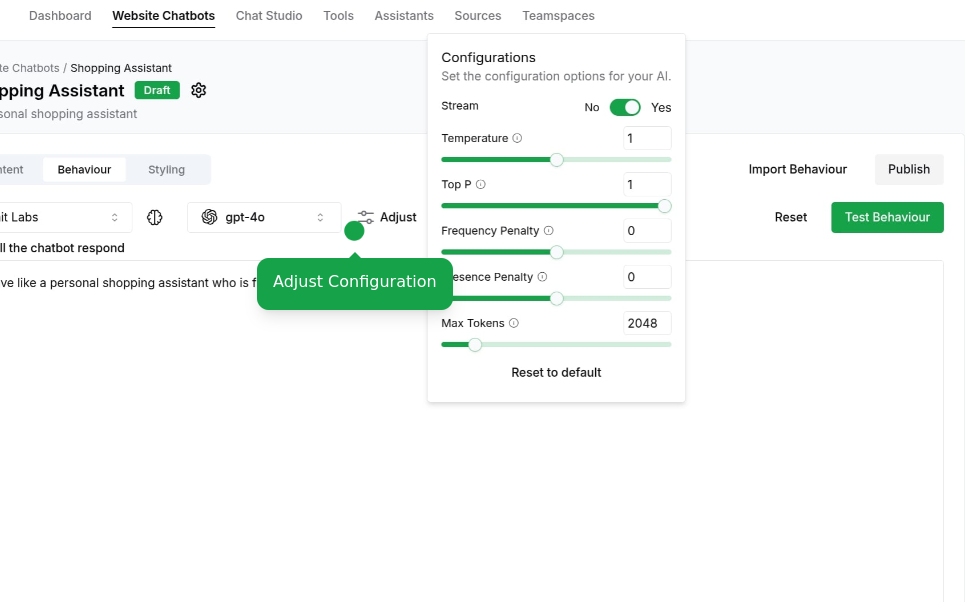
            Fine-tune your chatbot settings:

            * Temperature, Max tokens, Response length, Memory handling, Context window

            <Frame>
              <img src="https://mintcdn.com/hyperleap/QxFG4NXBbALtF1BY/images/chatbots/create/adjust-configuration.png?fit=max&auto=format&n=QxFG4NXBbALtF1BY&q=85&s=bd85dfdc198ff611011a11adb5e70c3d" alt="Adjust configuration" width="800" data-path="images/chatbots/create/adjust-configuration.png" />
            </Frame>
          </Accordion>
        </AccordionGroup>
      </Tab>

      <Tab title="Create Custom Behavior">
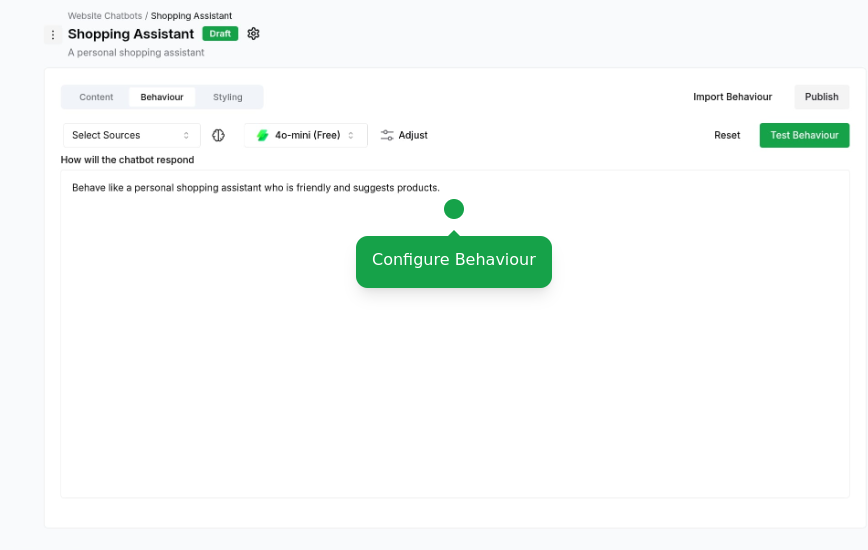
        Build your behavior from scratch with complete control:

        <AccordionGroup>
          <Accordion title="Define Custom Behavior">
            Configure your own custom behavior:

            <Frame>
              <img src="https://mintcdn.com/hyperleap/QxFG4NXBbALtF1BY/images/chatbots/create/configure-behaviour.png?fit=max&auto=format&n=QxFG4NXBbALtF1BY&q=85&s=5c7862baab73b2f79fff4e0b203e9f62" alt="Setting AI model" width="800" data-path="images/chatbots/create/configure-behaviour.png" />
            </Frame>
          </Accordion>

          <Accordion title="Set AI Model">
            Choose the AI model that best fits your use case:

            <Frame>
              <img src="https://mintcdn.com/hyperleap/QxFG4NXBbALtF1BY/images/chatbots/create/set-ai-model.png?fit=max&auto=format&n=QxFG4NXBbALtF1BY&q=85&s=00119e6ad8eeb5c2d07e41efbfd08a15" alt="Setting AI model" width="800" data-path="images/chatbots/create/set-ai-model.png" />
            </Frame>
          </Accordion>

          <Accordion title="Attach Sources">
            Connect your knowledge sources:

            * Upload documents, website URLs, or text content

            <Frame>
              <img src="https://mintcdn.com/hyperleap/QxFG4NXBbALtF1BY/images/chatbots/create/attach-sources.png?fit=max&auto=format&n=QxFG4NXBbALtF1BY&q=85&s=45ae1b76936e91fe362e3a9eb9f30583" alt="Setting AI model" width="800" data-path="images/chatbots/create/attach-sources.png" />
            </Frame>

            <Note>
              To learn more about sources, check out the [Sources](/guides/sources) guide.
            </Note>
          </Accordion>

          <Accordion title="Adjust Configurations">
            Fine-tune your chatbot settings:

            * Temperature, Max tokens, Response length, Memory handling, Context window

            <Frame>
              <img src="https://mintcdn.com/hyperleap/QxFG4NXBbALtF1BY/images/chatbots/create/adjust-configuration.png?fit=max&auto=format&n=QxFG4NXBbALtF1BY&q=85&s=bd85dfdc198ff611011a11adb5e70c3d" alt="Adjust configuration" width="800" data-path="images/chatbots/create/adjust-configuration.png" />
            </Frame>
          </Accordion>
        </AccordionGroup>
      </Tab>
    </Tabs>
  </Step>

  <Step title="Configure Style">
    Customize your chatbot's appearance:

    <Tabs>
      <Tab title="Import Style Template">
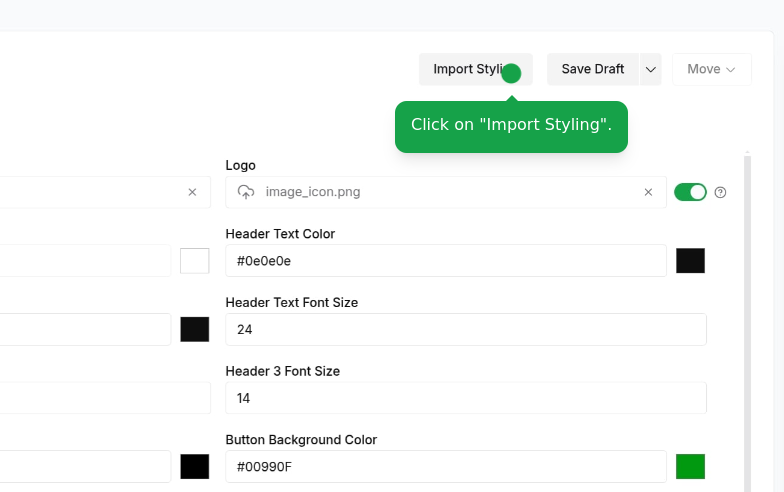
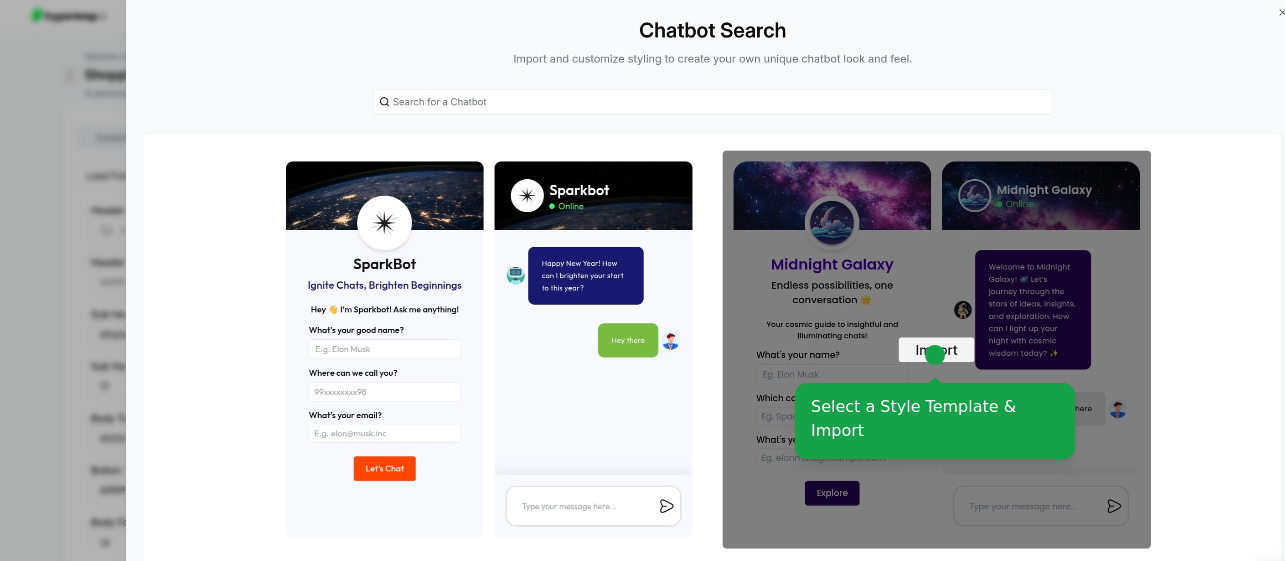
        Quick-start with pre-built style templates:

        <AccordionGroup>
          <Accordion title="Import Template">
            Start with our professionally designed templates:

            <Frame>
              <img src="https://mintcdn.com/hyperleap/QxFG4NXBbALtF1BY/images/chatbots/create/import-style-template.png?fit=max&auto=format&n=QxFG4NXBbALtF1BY&q=85&s=43d1db7ca013531723c8244a01aeb5e2" alt="Import style template" width="800" data-path="images/chatbots/create/import-style-template.png" />
            </Frame>

            <Frame>
              <img src="https://mintcdn.com/hyperleap/QxFG4NXBbALtF1BY/images/chatbots/create/select-style-template.png?fit=max&auto=format&n=QxFG4NXBbALtF1BY&q=85&s=5fe1cd018ff34d2ea2b2834dfafc2591" alt="Select style template" width="800" data-path="images/chatbots/create/select-style-template.png" />
            </Frame>

            After importing, you can customize all styling options below:
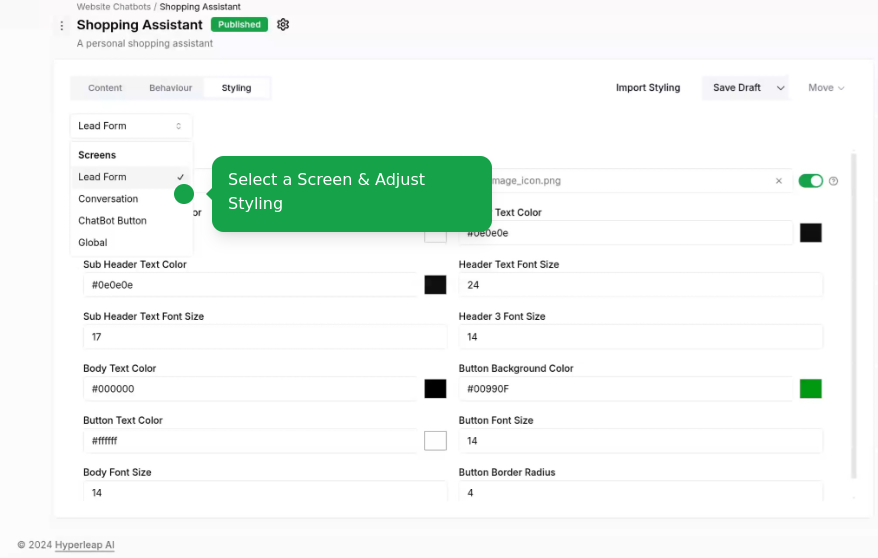
          </Accordion>

          <Accordion title="Customize Styling" icon="palette">
            Fine-tune the imported template:

            * Global styling
            * Lead form styling
            * Conversation styling
            * Chatbot button styling

            <Frame>
              <img src="https://mintcdn.com/hyperleap/QxFG4NXBbALtF1BY/images/chatbots/create/adjust-styling.png?fit=max&auto=format&n=QxFG4NXBbALtF1BY&q=85&s=f3042f8f4e87dd9dd2595686ff015e5b" alt="Adjust styling" width="800" data-path="images/chatbots/create/adjust-styling.png" />
            </Frame>
          </Accordion>
        </AccordionGroup>
      </Tab>

      <Tab title="Create Custom Style">
        Build your style from scratch with complete control:

        <AccordionGroup>
          <Accordion title="Configure Custom Style" icon="palette">
            Design every aspect of your chatbot:

            * Global styling
            * Lead form styling
            * Conversation styling
            * Chatbot button styling

            <Frame>
              <img src="https://mintcdn.com/hyperleap/QxFG4NXBbALtF1BY/images/chatbots/create/adjust-styling.png?fit=max&auto=format&n=QxFG4NXBbALtF1BY&q=85&s=f3042f8f4e87dd9dd2595686ff015e5b" alt="Adjust styling" width="800" data-path="images/chatbots/create/adjust-styling.png" />
            </Frame>
          </Accordion>
        </AccordionGroup>
      </Tab>
    </Tabs>

    <Info>
      You have the option to enable or disable branding for your chatbot.
    </Info>
  </Step>

  <Step title="Edit Chabot Settings">
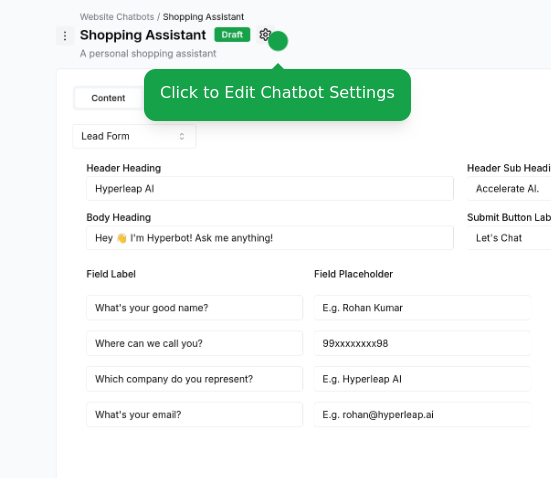
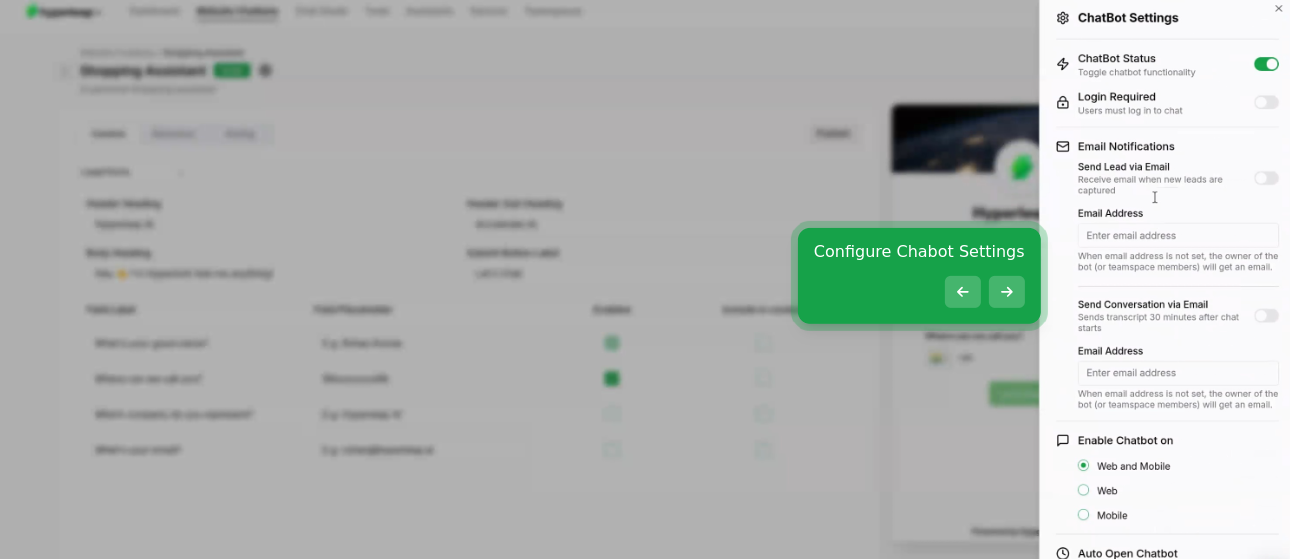
    Edit the chatbot settings:

    * Enable or disable the chatbot on mobile and desktop
    * Require Login to chat
    * Manage lead capture settings
    * AutoOpen chatbot on mobile and desktop with a delay

    <Frame>
      <img src="https://mintcdn.com/hyperleap/QxFG4NXBbALtF1BY/images/chatbots/create/edit-settings.png?fit=max&auto=format&n=QxFG4NXBbALtF1BY&q=85&s=968cf957da609e8292357b38f6f2a3ee" alt="Edit chatbot settings" width="800" data-path="images/chatbots/create/edit-settings.png" />
    </Frame>

    <Frame>
      <img src="https://mintcdn.com/hyperleap/QxFG4NXBbALtF1BY/images/chatbots/create/settings-panel.png?fit=max&auto=format&n=QxFG4NXBbALtF1BY&q=85&s=f33b3eaf6900721bdec39fc3fa8f4afe" alt="Edit chatbot panel" width="800" data-path="images/chatbots/create/settings-panel.png" />
    </Frame>
  </Step>

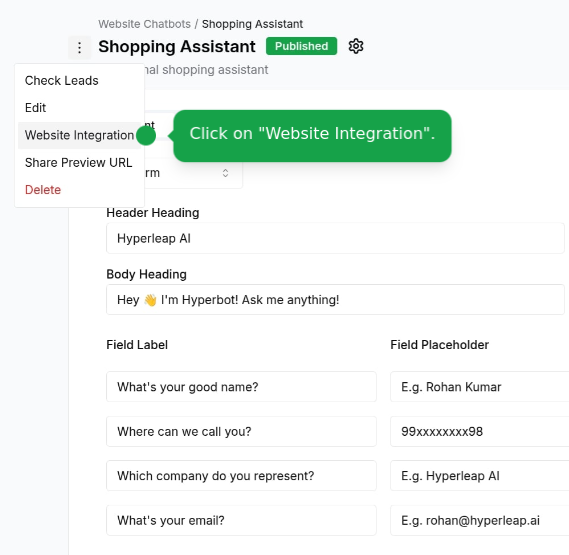
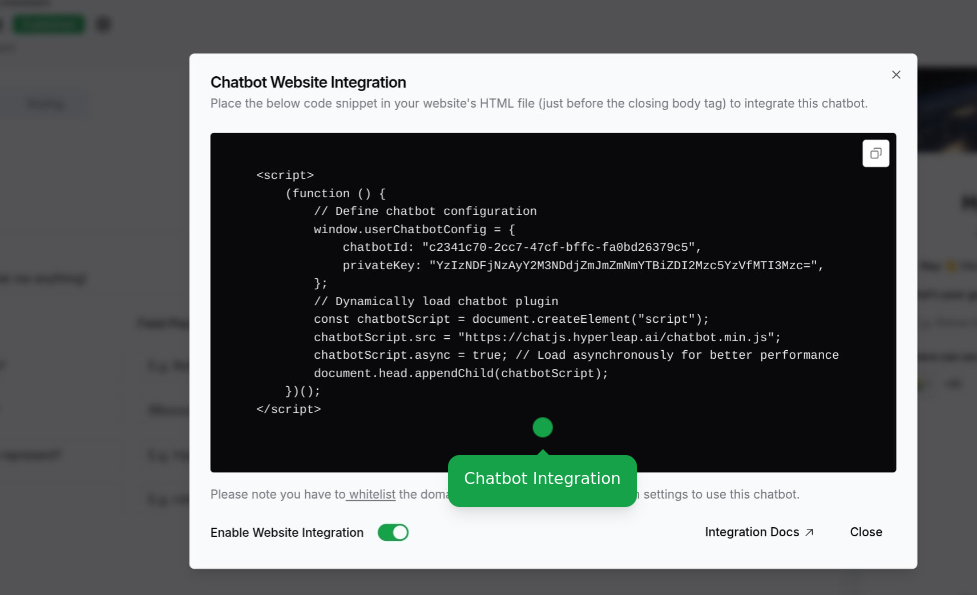
  <Step title="Integration">
    Add your chatbot to your website:

    * Publish your chatbot to enable integration.

    <Note>
      Users on the Free plan cannot integrate the chatbot. Please upgrade your plan to enable these features.
    </Note>

    <Frame>
      <img src="https://mintcdn.com/hyperleap/QxFG4NXBbALtF1BY/images/chatbots/create/integration.png?fit=max&auto=format&n=QxFG4NXBbALtF1BY&q=85&s=6e81489721102eae9edd3a4f02bff0c9" alt="Integration" width="800" data-path="images/chatbots/create/integration.png" />
    </Frame>

    <Frame>
      <img src="https://mintcdn.com/hyperleap/QxFG4NXBbALtF1BY/images/chatbots/create/integration-dialog.png?fit=max&auto=format&n=QxFG4NXBbALtF1BY&q=85&s=b8fa0d7f263cb250d91d27f2a1ac1d55" alt="Integration dialog" width="800" data-path="images/chatbots/create/integration-dialog.png" />
    </Frame>

    Place this code in the `<head>` tag of your website.

    ### Asset Types

    Your chatbot can share various types of assets with users:
    <CardGroup cols={2}>
      <Card title="Documents" icon="file-text">
        PDFs, Word docs, spreadsheets, and other documents
      </Card>

      <Card title="Images" icon="image">
        Product photos, diagrams, screenshots, and graphics
      </Card>

      <Card title="Web Pages" icon="globe">
        External links to landing pages, documentation, or resources
      </Card>

      <Card title="Videos" icon="video">
        YouTube and Vimeo video links that play in an embedded player
      </Card>

      <Card title="Calendar Links" icon="calendar">
        Cal.com or Calendly booking links for scheduling meetings
      </Card>
    </CardGroup>

    ### Programmatic Control

    You can control the chatbot from your website using custom buttons or links:

    <Tabs>
      <Tab title="Data Attributes (Easiest)">
        Add the `data-aichatbot-invoke` attribute to any HTML element:

        ```html theme={null}
        <!-- Open chatbot on click -->
        <button data-aichatbot-invoke="open">Ask AI Assistant</button>

        <!-- Close chatbot on click -->
        <button data-aichatbot-invoke="close">Close Chat</button>

        <!-- Toggle chatbot on click -->
        <a href="#" data-aichatbot-invoke="toggle">Chat with us</a>

        <!-- Empty attribute defaults to toggle -->
        <div data-aichatbot-invoke>Need Help?</div>
        ```

        Elements with this attribute are automatically bound when the chatbot loads. No additional JavaScript required!
      </Tab>

      <Tab title="JavaScript API">
        Use the global `HyperleapChatbot` API for custom control:

        ```javascript theme={null}
        // Open the chatbot
        window.HyperleapChatbot.open();

        // Close the chatbot
        window.HyperleapChatbot.close();

        // Toggle the chatbot
        window.HyperleapChatbot.toggle();
        ```

        Example usage with custom button:

        ```html theme={null}
        <button id="my-custom-button">Get Help</button>

        <script>
          document.getElementById('my-custom-button').addEventListener('click', function() {
            window.HyperleapChatbot.open();
          });
        </script>
        ```
      </Tab>
    </Tabs>

    <Info>
      **Features:**

      * Works with any HTML element (buttons, anchors, divs, etc.)
      * Supports dynamically added elements
      * Automatically prevents default actions on links
      * No duplicate event listeners
    </Info>
  </Step>

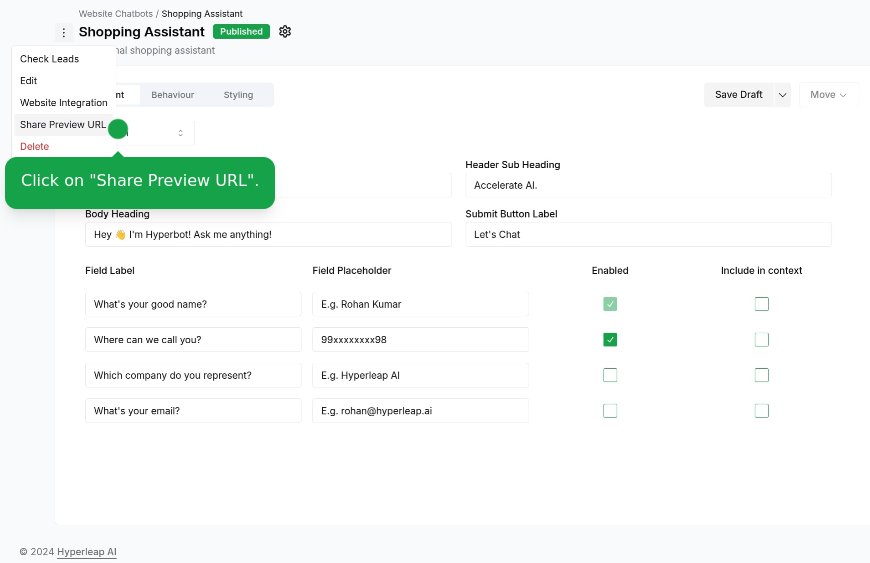
  <Step title="Preview and Share">
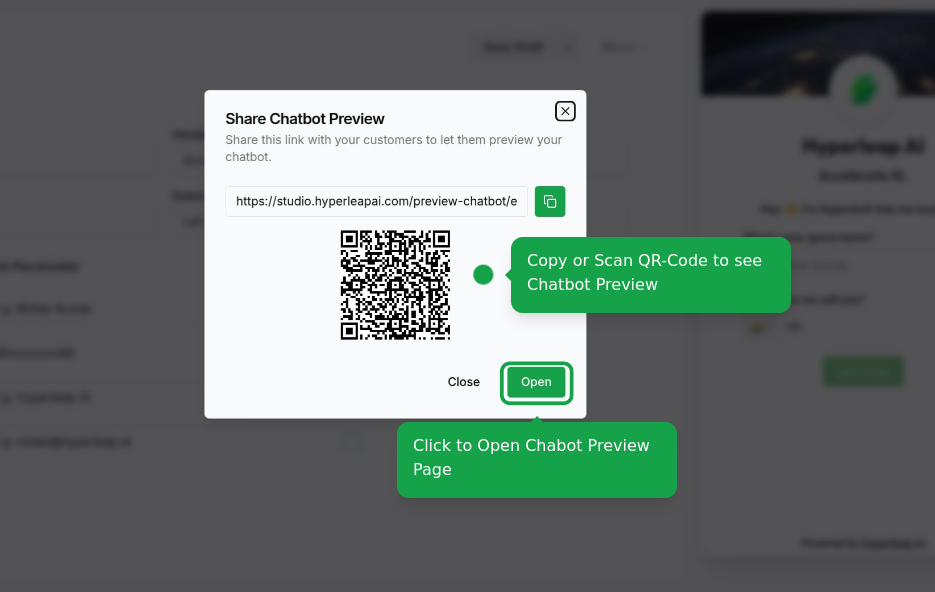
    * Preview on multiple devices
    * Share chatbot preview - Share this link with your customers to let them preview your chatbot.

    <Frame>
      <img src="https://mintcdn.com/hyperleap/QxFG4NXBbALtF1BY/images/chatbots/create/preview.png?fit=max&auto=format&n=QxFG4NXBbALtF1BY&q=85&s=231a7a364cc7020e9c3531e1a075f954" alt="Preview and share" width="800" data-path="images/chatbots/create/preview.png" />
    </Frame>

    <Frame>
      <img src="https://mintcdn.com/hyperleap/QxFG4NXBbALtF1BY/images/chatbots/create/preview-dialog.png?fit=max&auto=format&n=QxFG4NXBbALtF1BY&q=85&s=f376121fde49e19a5516a05083751a93" alt="Preview dialog" width="800" data-path="images/chatbots/create/preview-dialog.png" />
    </Frame>
  </Step>
</Steps>

<Note>
  Users on the Free plan can create up to 1 chatbot. Upgrade your plan to create
  more chatbots and access additional features.
</Note>

## Next Steps

<CardGroup cols={2}>
  <Card title="Return to Overview" icon="arrow-left" href="/guides/chatbots/chatbots">
    Back to Chatbots overview
  </Card>
</CardGroup>