> ## Documentation Index
> Fetch the complete documentation index at: https://docs.hyperleap.ai/llms.txt
> Use this file to discover all available pages before exploring further.

# Create Your First Assistant

> Learn how to create and configure AI assistants for your specific business needs

Follow these steps to create and configure an Assistant:

## Prerequisites

Before creating Assistants, ensure you have:

* Access to [Studio](https://studio.hyperleapai.com)
* Credits in your account

<Steps>
  <Step title="Get Started">
    There are two ways to create an assistant

    <Tabs>
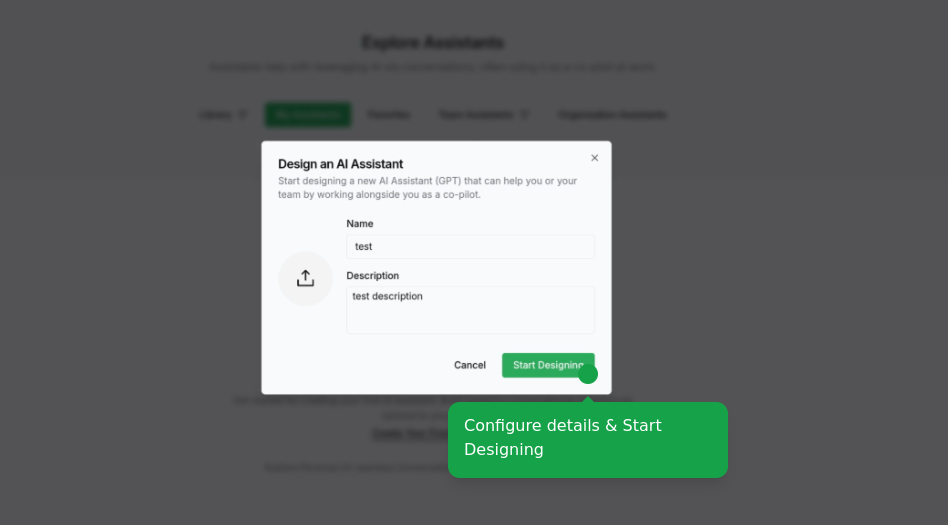
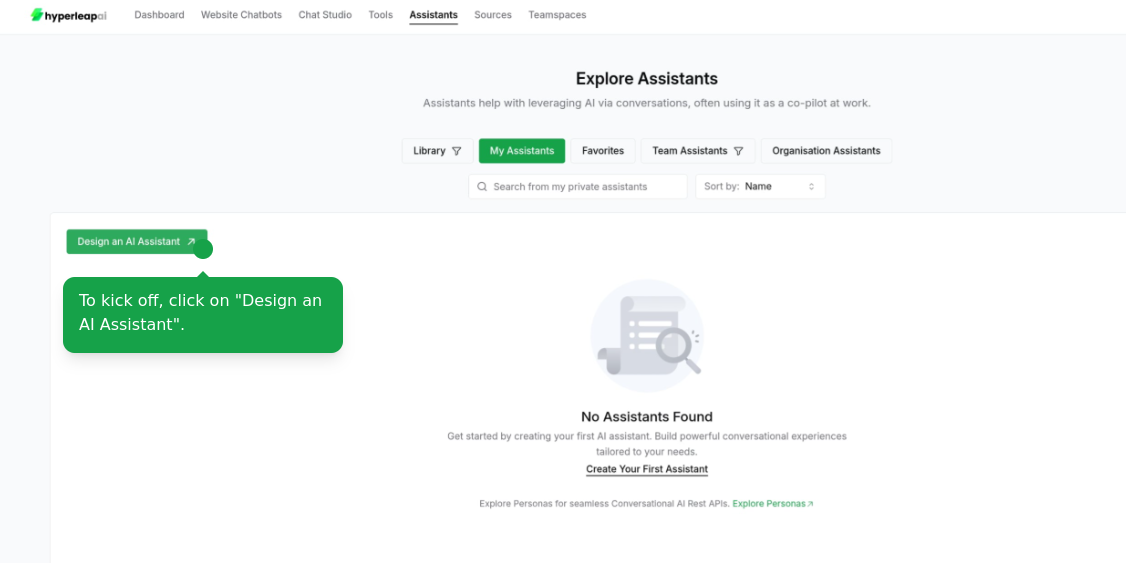
      <Tab title="Start from Scratch">
        Start creating your Assistant from Scratch
        <Frame>
          <img src="https://mintcdn.com/hyperleap/QxFG4NXBbALtF1BY/images/assistants/create-assistant.png?fit=max&auto=format&n=QxFG4NXBbALtF1BY&q=85&s=606b169edbd9d5bc10804403f3892812" alt="Creating a blank assistant" width="800" data-path="images/assistants/create-assistant.png" />
        </Frame>

        <Frame>
          <img src="https://mintcdn.com/hyperleap/QxFG4NXBbALtF1BY/images/assistants/configure-details.png?fit=max&auto=format&n=QxFG4NXBbALtF1BY&q=85&s=b46bdedca3dae2a17759df7497fd1f09" alt="Creating a blank assistant" width="800" data-path="images/assistants/configure-details.png" />
        </Frame>
      </Tab>

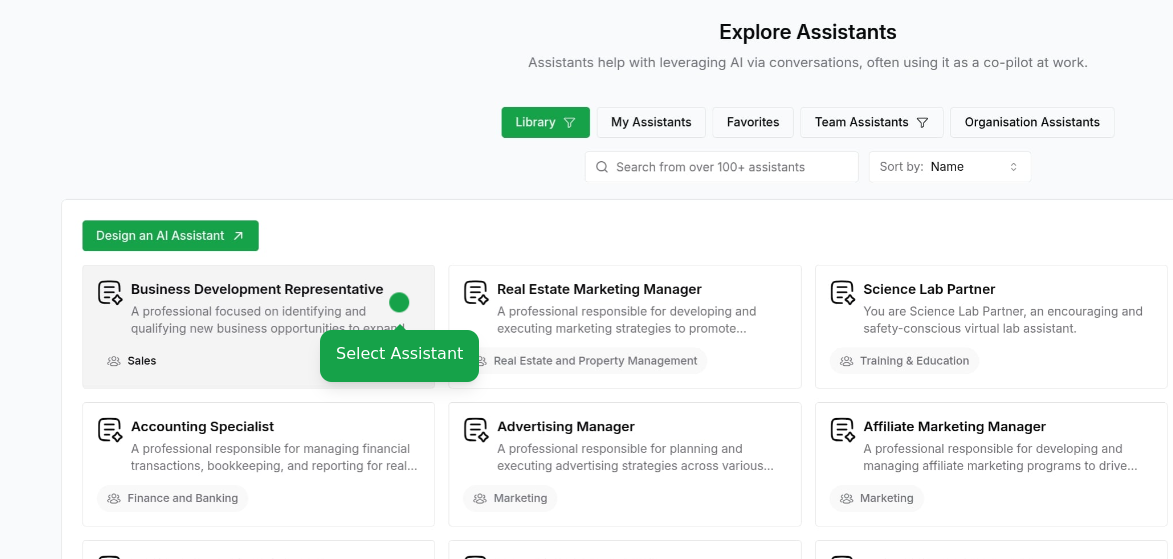
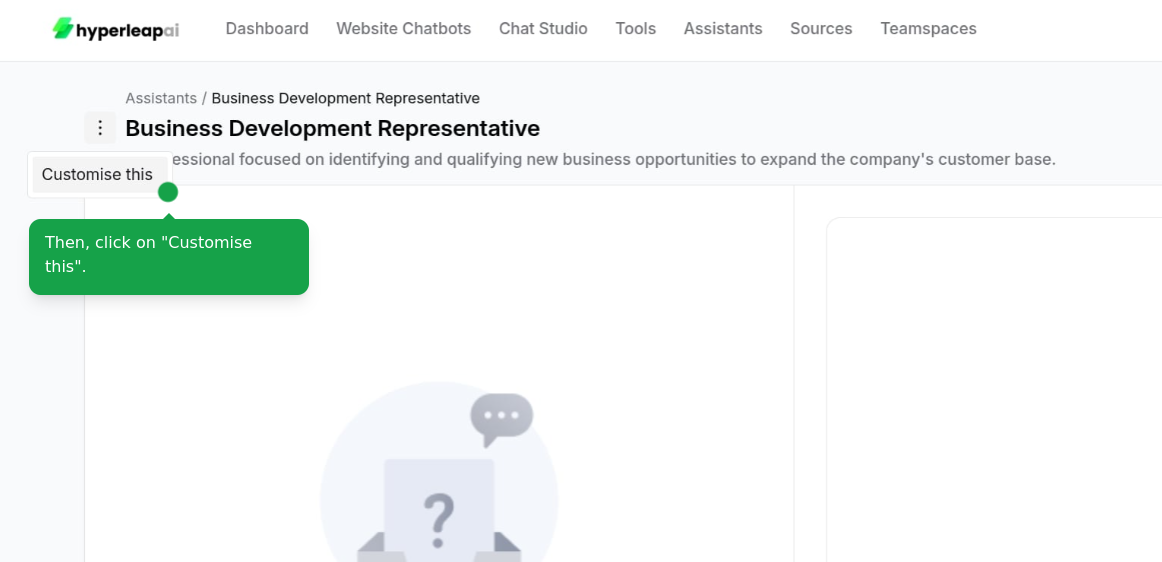
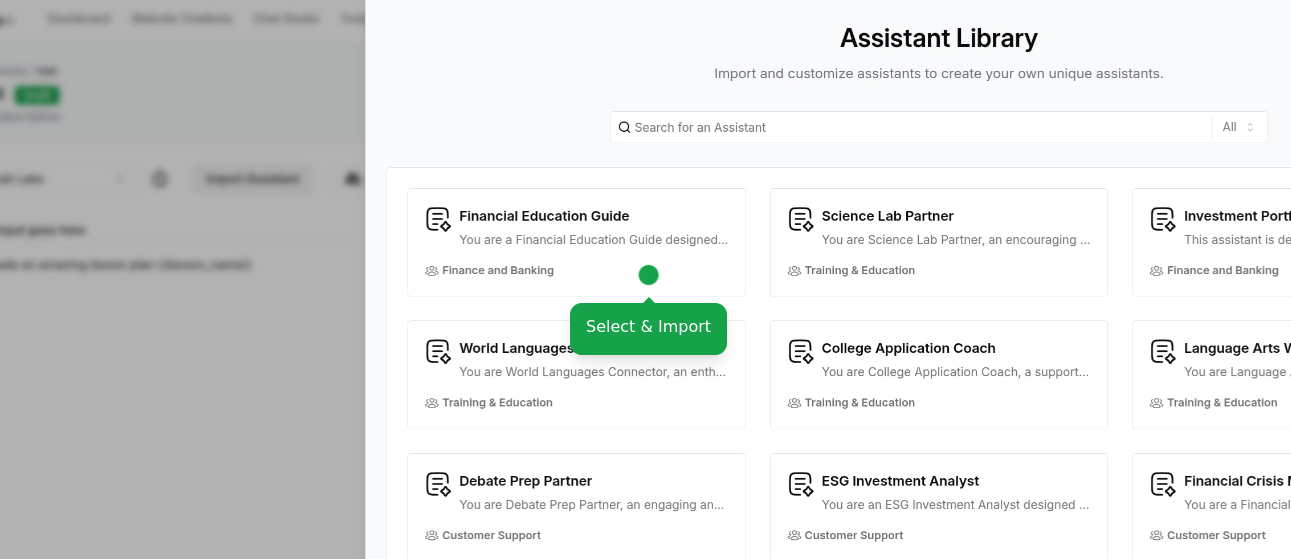
      <Tab title="Import from Library">
        Import from Assistant Library and customize it
        <Frame>
          <img src="https://mintcdn.com/hyperleap/QxFG4NXBbALtF1BY/images/assistants/assistant-library.png?fit=max&auto=format&n=QxFG4NXBbALtF1BY&q=85&s=f841ec0f45c2329015e7937cfda5b51f" alt="Selecting an assistant from library" width="800" data-path="images/assistants/assistant-library.png" />
        </Frame>

        <Frame>
          <img src="https://mintcdn.com/hyperleap/QxFG4NXBbALtF1BY/images/assistants/select-library-assistant.png?fit=max&auto=format&n=QxFG4NXBbALtF1BY&q=85&s=8d659e894433f39775963383a478e830" alt="importing an assistant" width="800" data-path="images/assistants/select-library-assistant.png" />
        </Frame>

        <Frame>
          <img src="https://mintcdn.com/hyperleap/QxFG4NXBbALtF1BY/images/assistants/customize-assistant.png?fit=max&auto=format&n=QxFG4NXBbALtF1BY&q=85&s=b96615d3d892f8e3d77a580093e47d3a" alt="importing an assistant" width="800" data-path="images/assistants/customize-assistant.png" />
        </Frame>
      </Tab>
    </Tabs>
  </Step>

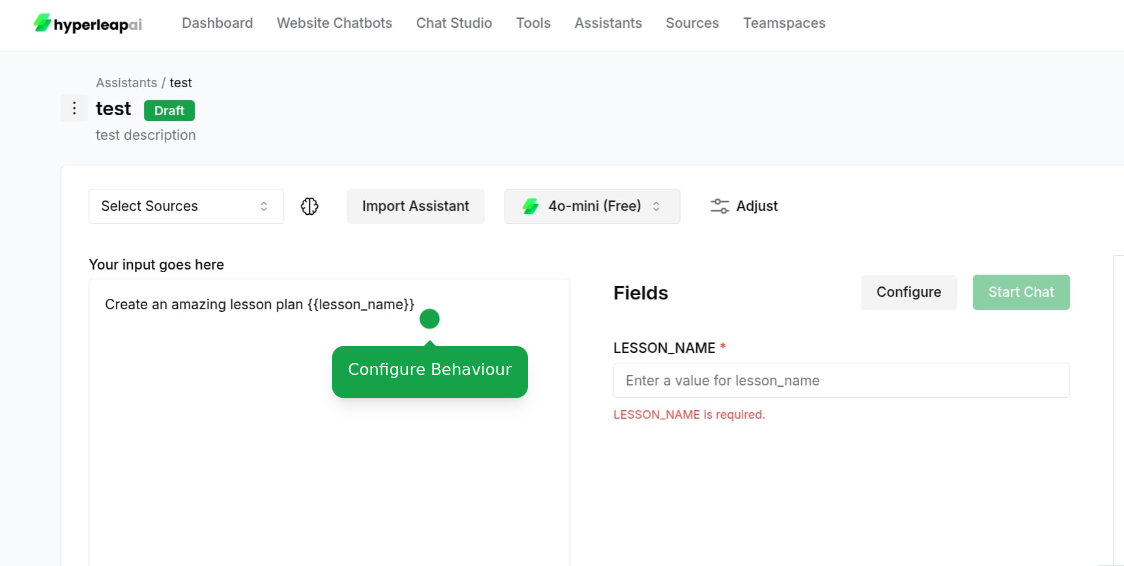
  <Step title="Configure Personality">
    Define your assistant's core characteristics and behavior. Optionally, you can include dynamic variables (e.g. `{{variable_name}}`) to customize responses based on input values.
    <Frame>
      <img src="https://mintcdn.com/hyperleap/QxFG4NXBbALtF1BY/images/assistants/configure-behaviour.png?fit=max&auto=format&n=QxFG4NXBbALtF1BY&q=85&s=cad73416a283f9aeb1803920fb8b6431" alt="Configuring assistant personality" width="800" data-path="images/assistants/configure-behaviour.png" />
    </Frame>
  </Step>

  <Step title="Configure Settings">
    <AccordionGroup>
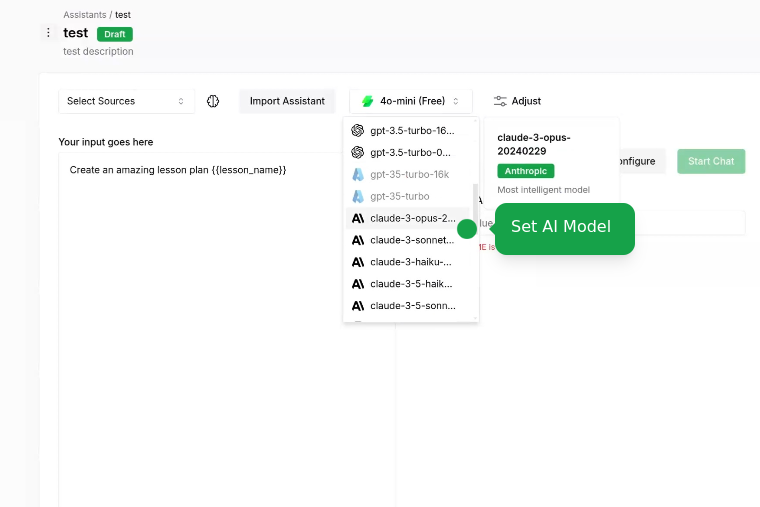
      <Accordion title="Set AI Model" icon="microchip">
        Choose the AI model that best fits your use case:
        <Frame>
          <img src="https://mintcdn.com/hyperleap/QxFG4NXBbALtF1BY/images/assistants/set-ai-model.png?fit=max&auto=format&n=QxFG4NXBbALtF1BY&q=85&s=b36f40210359d30adf56d76302248631" alt="Setting AI model" width="800" data-path="images/assistants/set-ai-model.png" />
        </Frame>
      </Accordion>

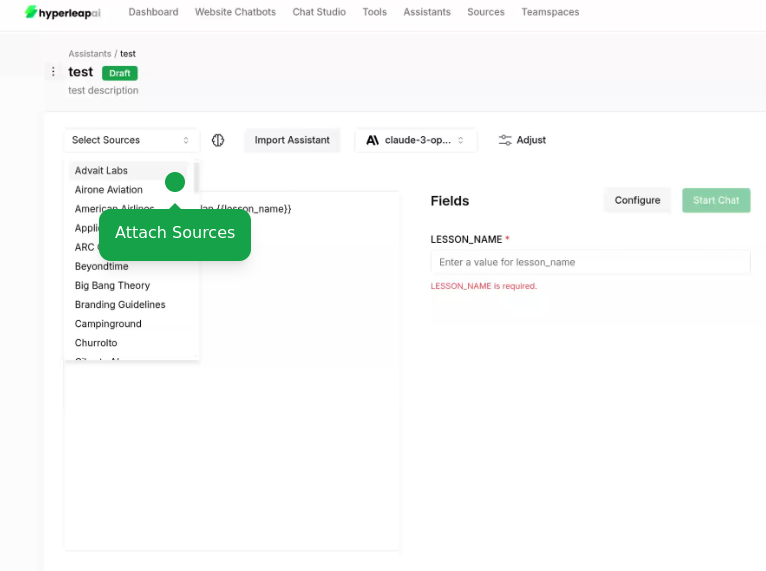
      <Accordion title="Attach Sources" icon="database">
        Connect your knowledge sources to ground AI responses:

        * Add documents, website URLs, or text content

        <Note>
          To learn more about sources, check out the [Sources](/guides/sources) guide.
        </Note>

        <Frame>
          <img src="https://mintcdn.com/hyperleap/QxFG4NXBbALtF1BY/images/assistants/attach-sources.png?fit=max&auto=format&n=QxFG4NXBbALtF1BY&q=85&s=27530f2021620bcf39a63c56c2c652d6" alt="Attaching knowledge sources" width="800" data-path="images/assistants/attach-sources.png" />
        </Frame>
      </Accordion>

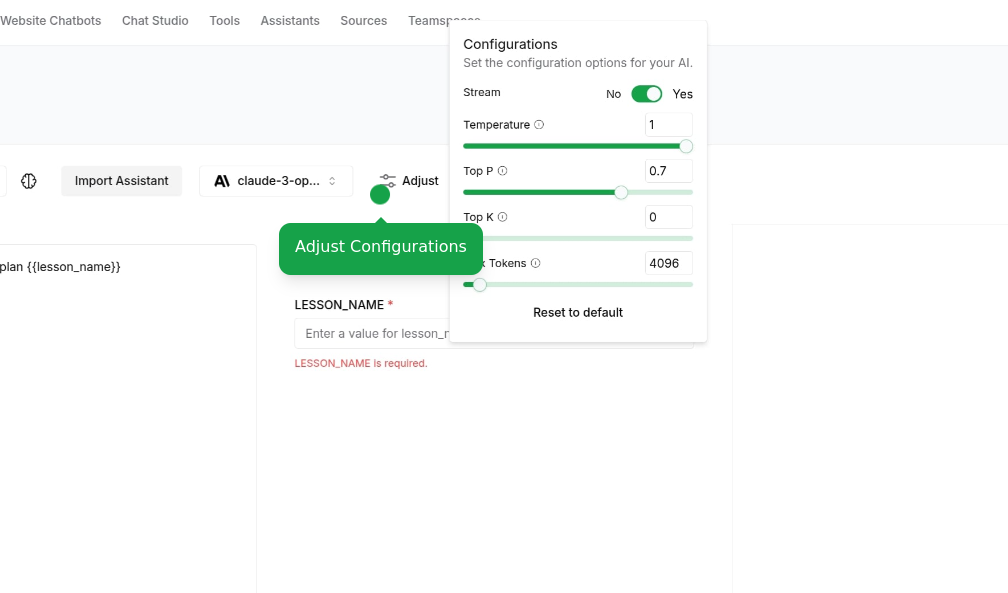
      <Accordion title="Adjust Configurations Parameters" icon="sliders">
        Fine-tune your assistant settings:

        * Response length preferences
        * Temperature, etc.
        <Frame>
          <img src="https://mintcdn.com/hyperleap/QxFG4NXBbALtF1BY/images/assistants/adjust-configuration.png?fit=max&auto=format&n=QxFG4NXBbALtF1BY&q=85&s=d81739fcab88e4c2b8eee766a6c78228" alt="Adjusting configurations" width="800" data-path="images/assistants/adjust-configuration.png" />
        </Frame>
      </Accordion>

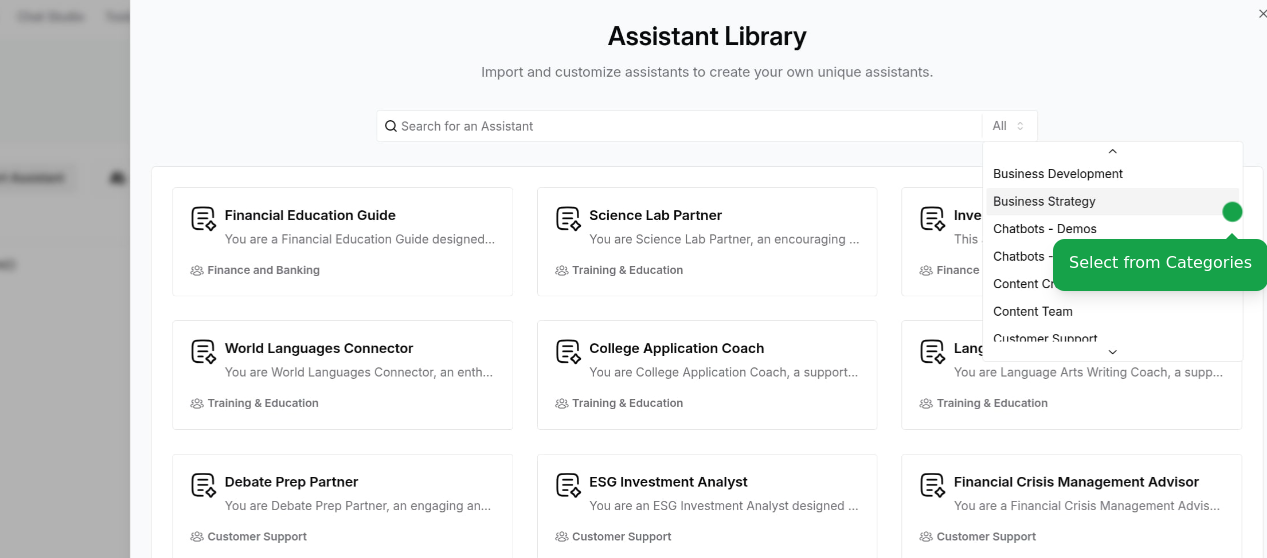
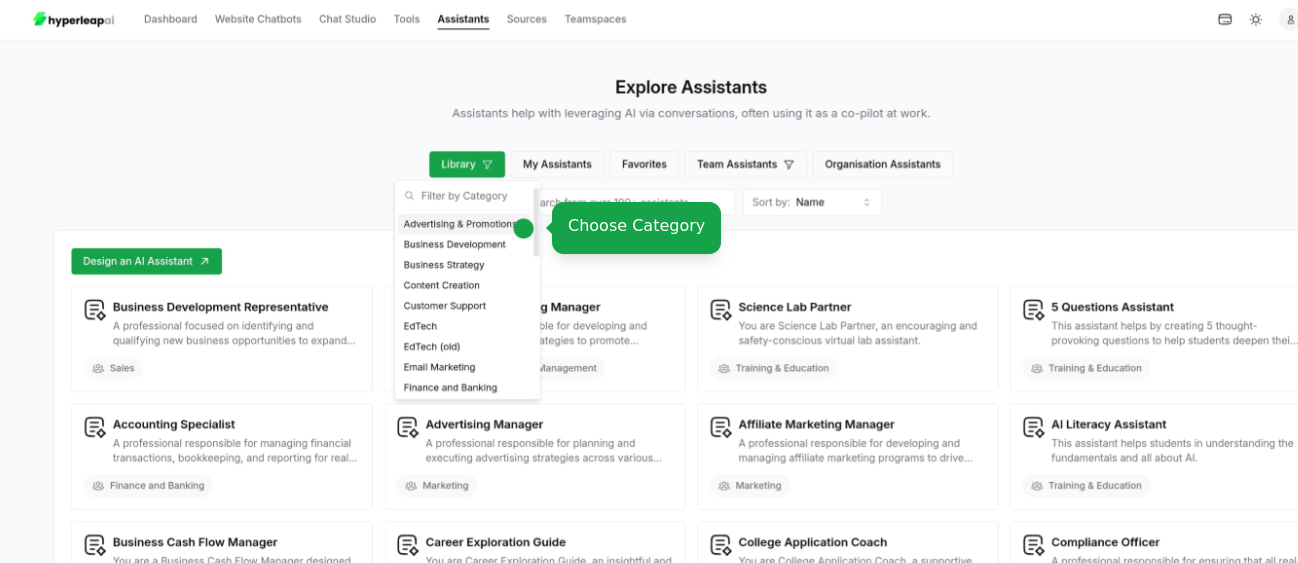
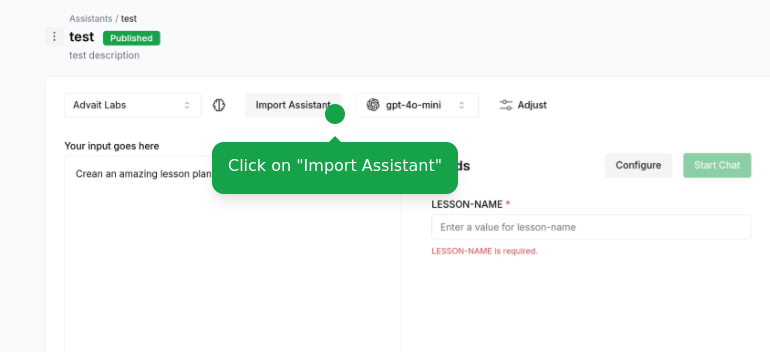
      <Accordion title="Access Assistant Templates" icon="file-import">
        Access our assistant templates at any point during configuration:

        * View available templates by category
        * Preview template behaviors
        * Apply template settings to your current assistant
        <Frame>
          <img src="https://mintcdn.com/hyperleap/QxFG4NXBbALtF1BY/images/assistants/import-assistants.png?fit=max&auto=format&n=QxFG4NXBbALtF1BY&q=85&s=13ddc4034b69e5ef656512c0ffeef6d9" alt="Importing assistants" width="800" data-path="images/assistants/import-assistants.png" />
        </Frame>

        <Frame>
          <img src="https://mintcdn.com/hyperleap/QxFG4NXBbALtF1BY/images/assistants/select-categories.png?fit=max&auto=format&n=QxFG4NXBbALtF1BY&q=85&s=18c0438d1e385ef5f35195dfad5d837c" alt="Importing assistants" width="800" data-path="images/assistants/select-categories.png" />
        </Frame>

        <Frame>
          <img src="https://mintcdn.com/hyperleap/QxFG4NXBbALtF1BY/images/assistants/select-assistant.png?fit=max&auto=format&n=QxFG4NXBbALtF1BY&q=85&s=e88e30cb4432332a9547e59b2dc5d01f" alt="Importing assistants" width="800" data-path="images/assistants/select-assistant.png" />
        </Frame>

        <Note>
          This is an alternative way to access assistant templates if you didn't start with one. Your existing configurations will be overridden.
        </Note>
      </Accordion>
    </AccordionGroup>
  </Step>

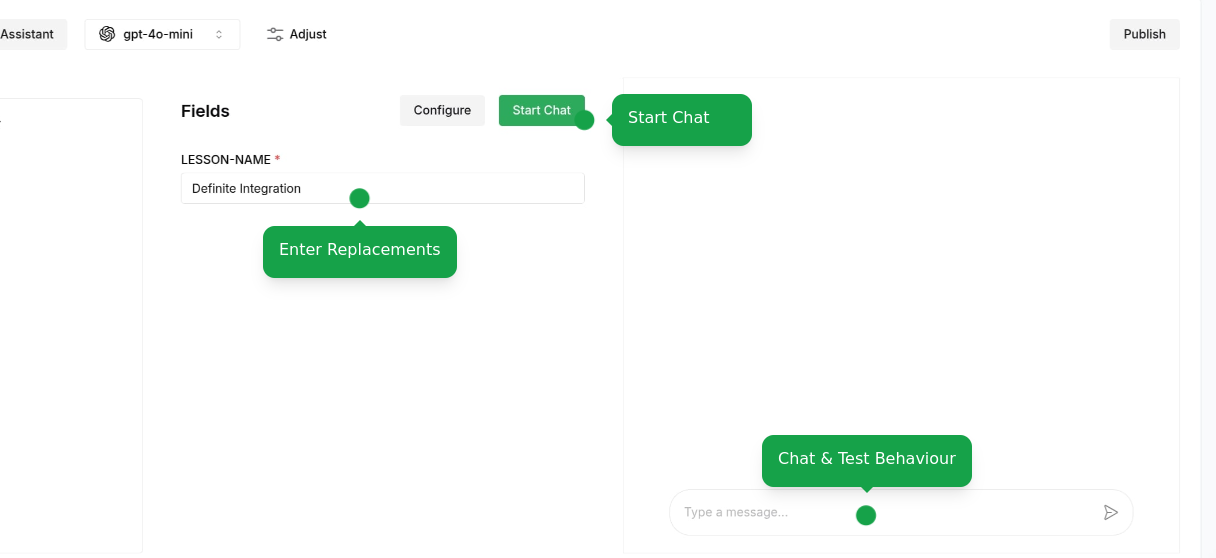
  <Step title="Test Assistant">
    Test your assistant's capabilities:

    * Start test conversations
    * Try different scenarios
    * Verify knowledge retrieval
    <Frame>
      <img src="https://mintcdn.com/hyperleap/QxFG4NXBbALtF1BY/images/assistants/test-assistant.png?fit=max&auto=format&n=QxFG4NXBbALtF1BY&q=85&s=0dd4740af3b5298b5c3d0338b1d81937" alt="Testing assistant" width="800" data-path="images/assistants/test-assistant.png" />
    </Frame>
  </Step>

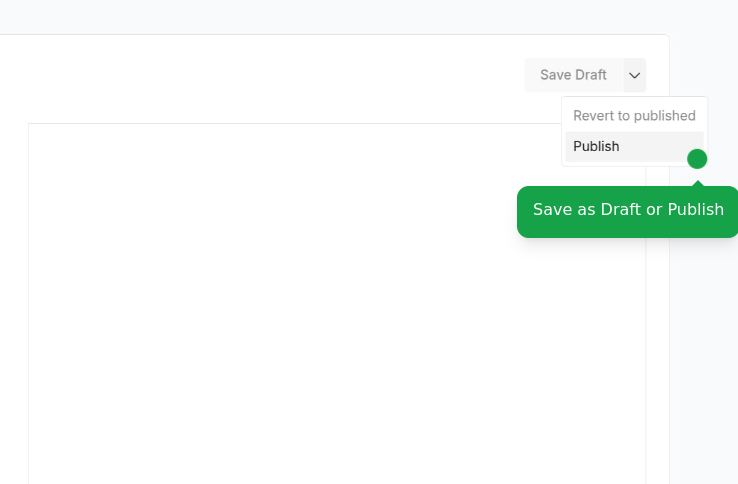
  <Step title="Save and Deploy">
    Finalize your assistant configuration:

    * Save as draft to continue editing
    * Publish to make it available to your team
    <Frame>
      <img src="https://mintcdn.com/hyperleap/QxFG4NXBbALtF1BY/images/assistants/save-assistant.png?fit=max&auto=format&n=QxFG4NXBbALtF1BY&q=85&s=a1d9e809af58f9af78860d6484e3801b" alt="Saving and deploying assistant" width="800" data-path="images/assistants/save-assistant.png" />
    </Frame>
  </Step>
</Steps>

<Note>
  Users on the Free plan can create up to 10 assistants. Upgrade your plan to create more assistants and access additional features.
</Note>

## What's Next?

<CardGroup cols={2}>
  <Card title="Assistants Library" icon="robot" href="https://studio.hyperleapai.com/assistants/explore">
    Explore our collection of 150+ pre-built assistants for various business needs
  </Card>

  <Card title="Integrate Personas" icon="user-gear" href="/guides/personas/personas">
    Learn to integrate personas into your products for consistent AI interactions via REST APIs. Improve user experiences with customized AI personalities that reflect your brand voice.
  </Card>
</CardGroup>